Last Updated v1
Static Forms
These screens allow
the TPAan Admin Center user upload static forms (PDF as an example) for the end user to download and fill out or review off-line.
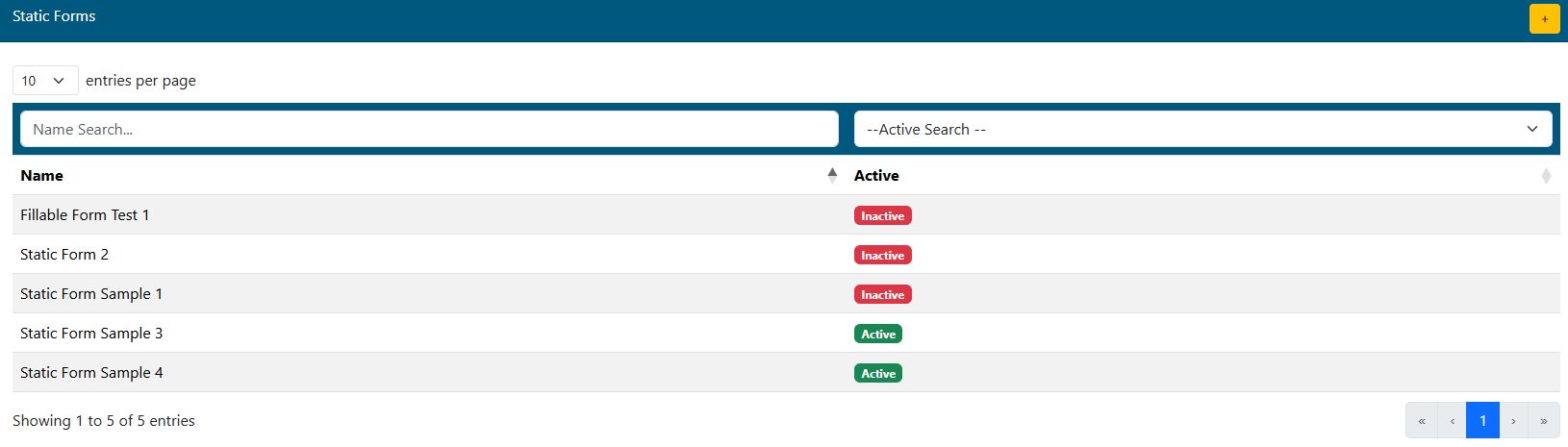
- Select the desired form from the list.
- User filtering options at the top of each column to narrow the list.
- Select the desired form from the list to edit the options or:
- A new form can be created using the New
 button.
View Forms Tab
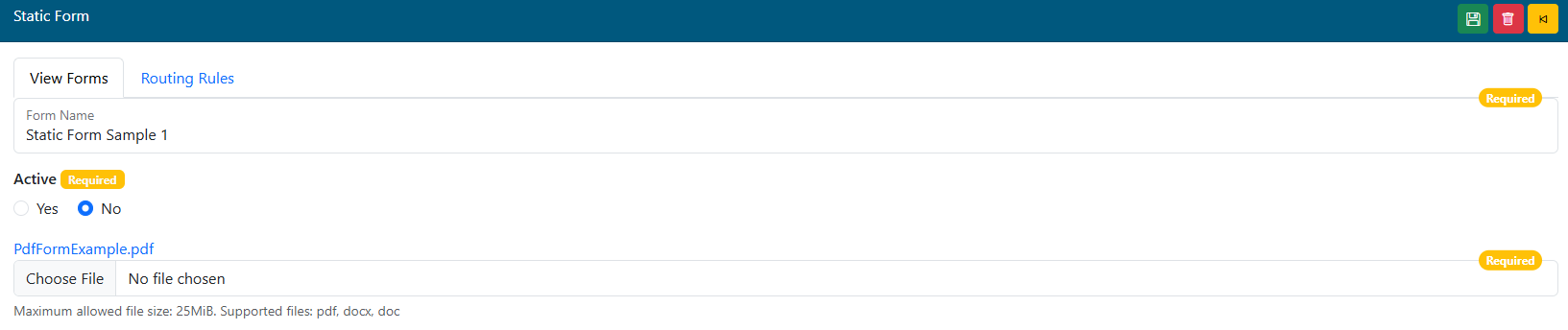
- Form Name - Add/Edit the name of the form. This name is what will appear on the list for the end users to select.
- Form Active - Select if this form is currently active, and will appear for the groups clients/providers and centers designated. If Active is set to NO, this form will not be visible for any group or center (this overrides all Routing Rules).
- Form Document Choose File - Click the Choose File button to browse your computer for the PDF, JPG, etc. file to upload to the system.
- Click the SAVE icon to save any changes.
PDF Form Field Mapping(Added with version 5.6.5):
If a fillable PDF form is uploaded in the Form Document selection, additional options are available on the setup screen as show on the right side of the screenshot above. These fields allow an admin map fields on the PDF to fields in the Web eXchange claim system web services. This will allow the system to automatically fill in the mapped fields for the member when they download the form from the member Center. Examples of fields that can be filled in/mapped are First Name, Last Name, DOB, Address information, etc. Use the fields below to perform the mapping function. **If a standard PDF form is uploaded in the Form Document section above, these conditional fields will NOT be available.
- PDF Form Fields (Conditional) - This list shows all fields on the PDF form that was uploaded. The field names are controlled by the uploaded PDF itself and cannot be changed by Web eXchange. If the field names are not clear, you may need to open the PDF form itself with Adobe Acrobat Standard/Pro to see which field names go with which field on the PDF.
- Once a form field is selected from the list, us the Member Fields list to match up what Web eXchange field data will be mapped into the selected PDF Form Field.
- Member Fields(Conditional) - Select a Web eXchange member web service field that should be used to fill in the data to the selected PDF Form Field.
- Once both fields are selected, that single field mapping will be entered automatically into the PDF Form Mapping box.
- PDF Form Mapping (Conditional) - This text box displays all selected fields that have been mapped. One field set per row.
- The data in this box can be manually changed/added instead of using the select boxes above.
- Click the SAVE Save
 icon to save any changes.
 - Click the Delete
 icon to delete the form (this cannot be reversed).
 - Click the Back
 icon to go back to the form list.
Routing Rules Tab
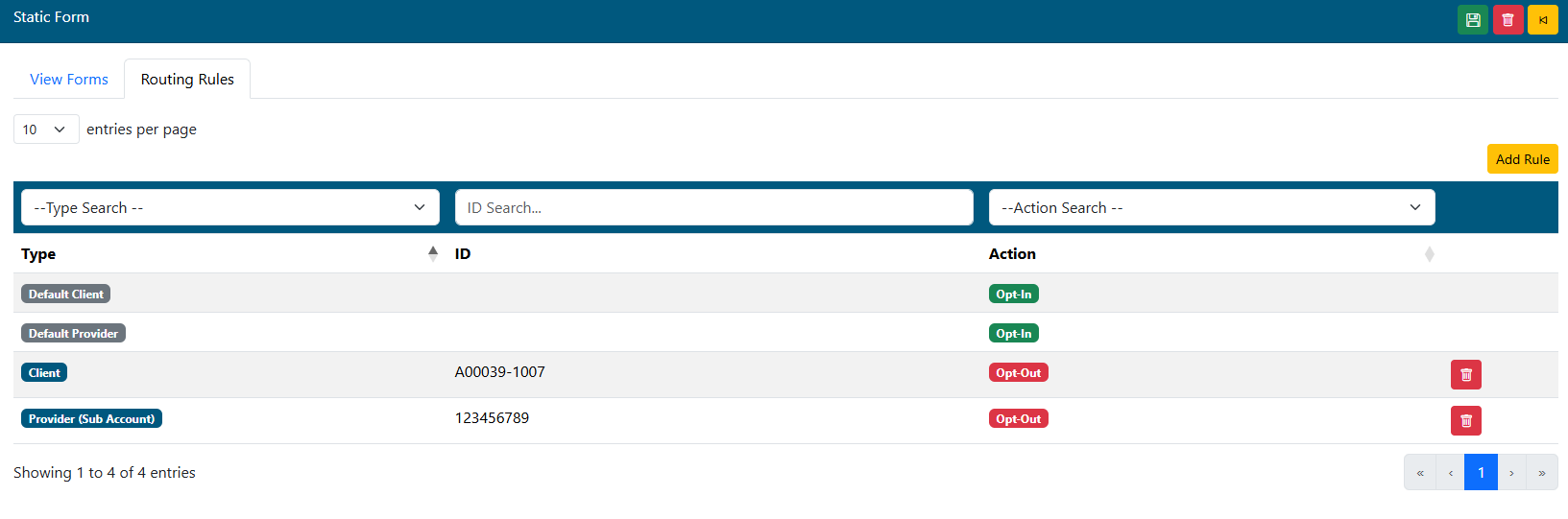
This tab allows you to specify what Centers and Client Groups can see this form. Routing rules can be used in any combination to allow flexibility.
- Search - Search/Filter through existing rules using the search
- Use the filter boxes at the top of each field
- column to narrow down the list of existing routing rules.
- Select - Select any existing rule
- the desired rule to edit by clicking it from
- on the list
- row.
- Default Rule - This rule is applied automatically to NOT show for any Clients or Centers. If you want this form to appear for ALL Clients in a specific Center, check that Center's box. The form will now show for all groups in that Center unless overridden by another rule that contains that Client Number.
- Rules - Default rules for Provider and Client centers are always created by the system when adding a new form. These rules are set with Opt-Out by default, and will keep this form from showing on any Centers until it is modified manually, or until a specific Client/Provider based routing rule is added below it.
- If you wish to have this form show for ALL Clients, edit the Default Client rule and change it to Opt-In.
- If you wish to have this form show for ALL Providers, edit the Default Provider rule and change it to Opt-In.
- Add Rule - Select this button at the top to add a new routing rule that will override the Default Rule. The Default Rule will remain in effect for any clients/providers that are not listed in the new rule.
- Delete

- Add Rule - Add a new routing rule. Delete
- - Deletes the rule record. This cannot be reversed.
Add/Edit Rule Window
Client Rule Option:
- Employer - Enter the client to apply this rule to. Enter client number or name to search for the correct client. Select it from the list to confirm.
- Centers - Check which Centers this rule applies to for the selected client group.
- Click the SAVE icon to save any changes.
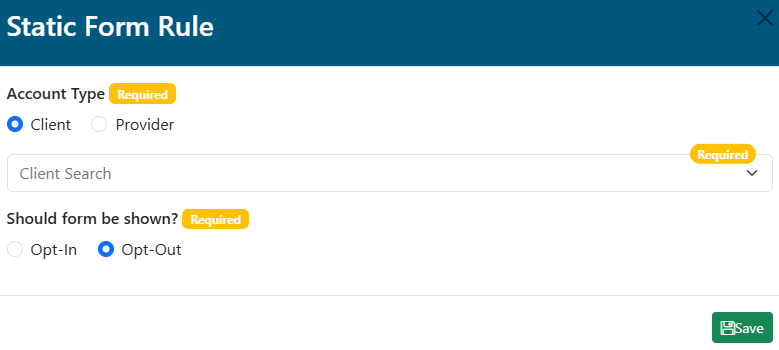
- Account Type - Select Client.
- Client Search - Enter the client ID or name and select the matching result from the list.
- Should form be shown? - Select Opt-In to show this link for the Client. Select Opt-Out to hide this link from the Client.
- Click the SAVE button to save changes.
Provider Rule Option:
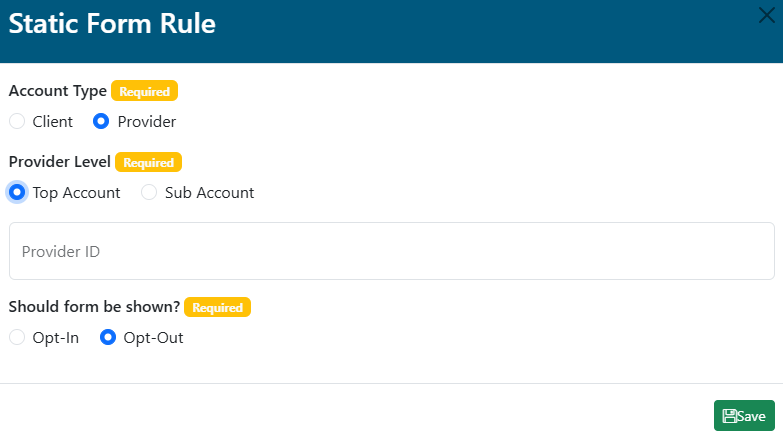
- Account Type - Select Provider.
- Provider Level - Select Top Account or Sub Account.
- Provider ID - Enter a top account ID or individual provider sub account ID (TIN).
- Should form be shown? - Select Opt-In to show this link for the Provider. Select Opt-Out to hide this link from the Provider.
- Click the SAVE button to save changes.