Last Updated v1
This screen is used to view Claims and claim status information.
The Claims screen will show ONLY claims that were paid under the provider Tax ID(s) your Provider Center account is associated with.
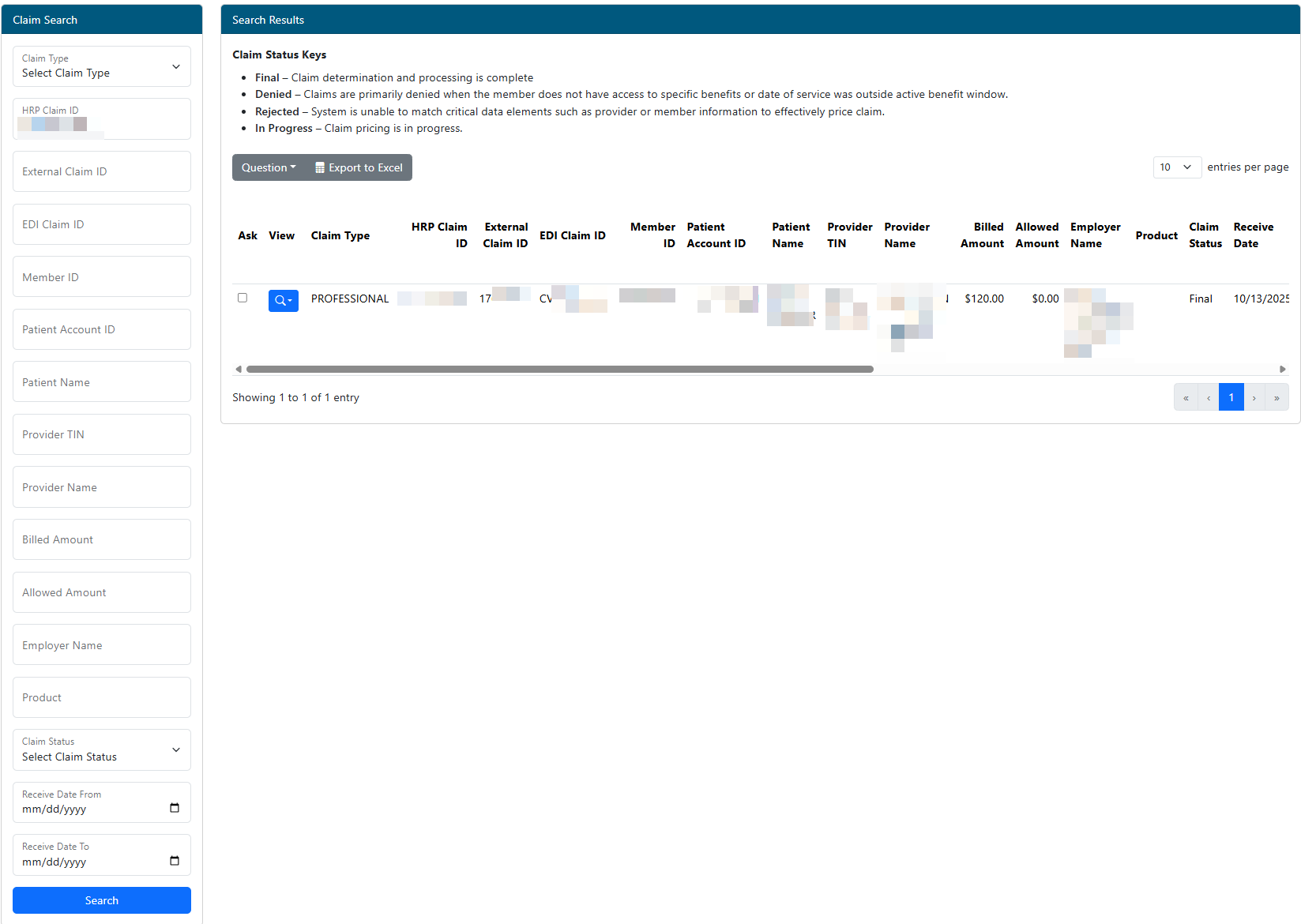
- All claims are shown in DOS order from newest to oldest.
- Searching Claims - Claims
- Claims can be filtered by typing in search criteria in the left Claim Search panel.
- Click the Search button to execute the search process.
- Once claim results are shown in the results list, the options listed below
the respective column heading. - are available.
- If the search criteria entered is too broad, the system may take excessive time to return results. For the best results, please enter as much search criteria as possible.
- **The results table contains multiple columns and can be scrolled right/left using the scrollbar at the bottom of the results to see more columns.
- Questions - Use this option to ask questions or fill out forms related to a claim in the result list. Claim(s) in the result list need to be selected by clicking the checkbox in the "ASK" column of the results row.
- Question options can vary per client.
- When the question form is displayed, complete all required fields, any optional fields as needed, and click the Save button to submit the question form. A transaction ID will be displayed for tracking. All previously submitted transactions (questions and forms) can be viewed from the My Account\My Transactions main menu option.
- Export to Excel - Use this option to export all claims currently listed in the grid to an Excel sheet (includes all pages in the grid).
- Back - Use the back button
to return to the member search list.
| Note |
|---|
The Charges filter must omit the $ symbol. |
Filtering will happen as the criteria is typed in. There is no need to click any additional buttons to perform the search. Filters can be cleared by removing the search criteria from the boxes.
Paging
- Paging - Claims in the grid are shown 10 at a time. The bottom of the grid contains the current page being viewed and the total number of pages. The page can be changed by using the forward or back arrows. A page number can also be typed into the current page number box followed by the enter key. The grid will then jump to the given page number.
- View
Claim Detail
- Ask a Question - When clicked, a box will be presented to ask a question regarding the current claim being viewed. Enter the question into the “Type Your Question Below” text area. Click the “Ask” button to submit your question to customer service. The status of your question can be viewed at a later date by navigating to MyInfo → My Transactions on the menu.
- **The Ask a Question button will not be available of the member's employer has disabled this functionality.
- Provider EOB - When clicked, a new window will open displaying the actual EOB that was sent to the provider for this claim, or a replica EOB, if the original is not available online.
- Plan Document - When clicked, a new window will open displaying the corresponding plan document.
- Please review the Coverage tab for detailed plan and amendment information as well as coverage dates and history.
- Amendments - When clicked, a new window will open displaying any plan amendment documents (if available).
- Check Detail - Hover the mouse over the $ symbol next to the "Check" label (PAID claims only). This will show the check details.
- Service Line Detail - Hover the mouse over the ! symbol next to any detail line item (if present). This will show the explanation of denied charges details
Coverage
The Coverage screen will show demographic and detailed plan coverage information for the selected employee and any dependents on the plan.
Name - This area shows name and demographic information about the member.
ID - This area shows employer and member identification information.
- Temp ID Card (if available for the employer): Click this option to see a PDF copy of the member's ID card.
- Email Card: Once the ID card is visible on screen, click the EMAIL CARD button to send a PDF copy of the ID card to a specified email address.
Products - This area shows all covered products and details for the employee. Select any product row to see the history of coverage for that product.
Family Members - Select a family member and the screen will update (and all tabs) with that member's information.
COB (Conditional)
***The COB tab is only available for certain employer groups that have custom COB information stored on the HealthSmart core claim system. Web eXchange does not show COB information from third party vendor systems. The COB tab will not display if the member does not have any COB information in the core claim system.
Ded/Plan Max
- Select the Year and Product to view the deductible, out of pocket, plan maximum(if available), and other accumulator information.
- Web eXchange shows information for the years the participant has coverage.
- Click the Plan Document icon to view the related Plan Document (if available).
 - The View button provides a selection of claim related documents like Claim Forms and Repricing Sheets.
- Select an option from the list to view the corresponding document (Not all documents are available for all claims).
Viewing Claim Details
Click anywhere in the Search Results row of the claim to be viewed. This will open the claim detail screen.
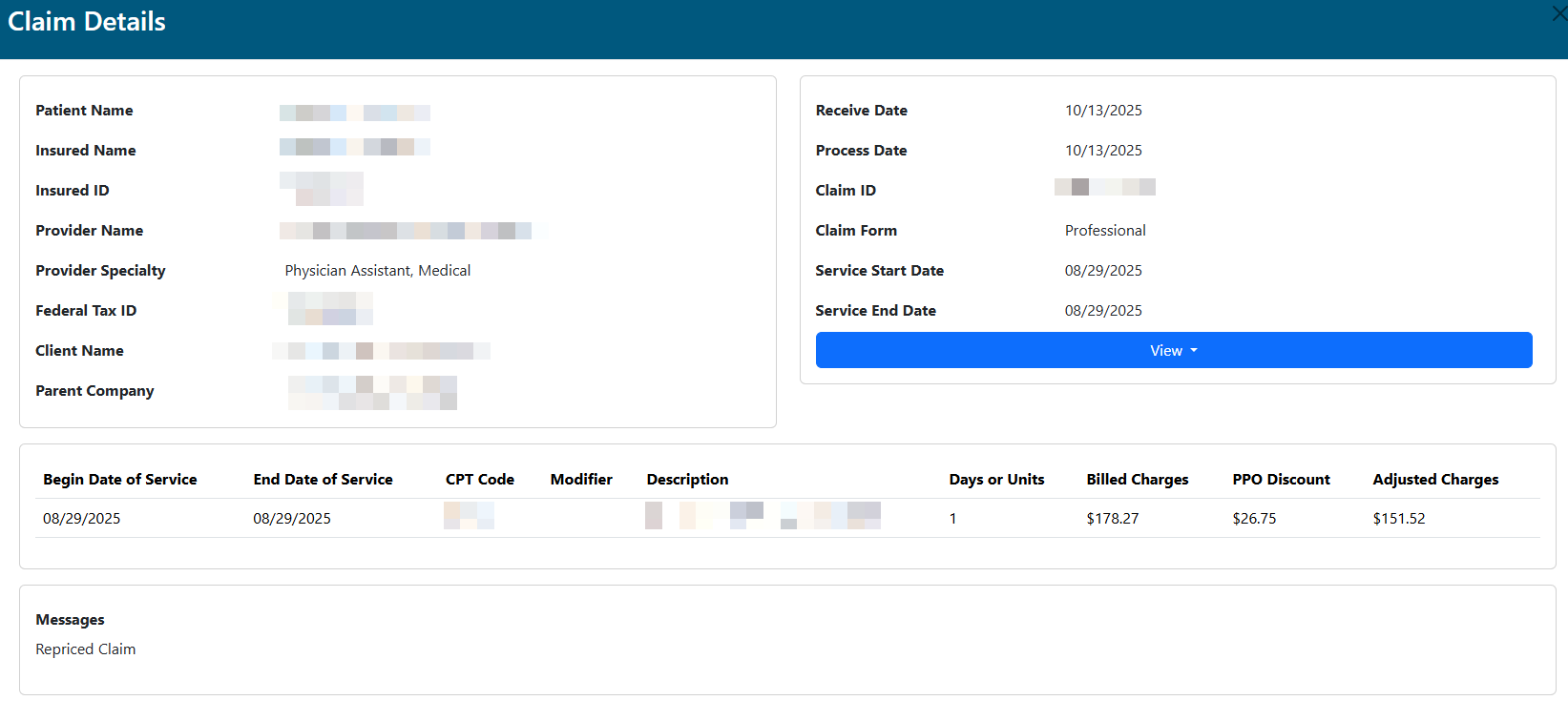
- View - The View button provides a selection of claim related documents like Claim Forms and Repricing Sheets.
- Select an option from the list to view the corresponding document (Not all documents are available for all claims).