Last updated v1
Introduction
Web eXchange has been supplied by HealthSmart Network Solutions to provide real time information regarding network claims and practitioners/providers.
In this help system, you will find detailed information about every area of the Web eXchange Client Center. Please select help topics from the left menu tree to move through the help system.
We hope you enjoy using Web eXchange, and find everything quickly and easily.
Login
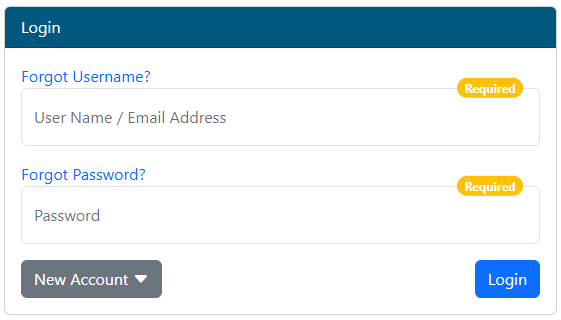
After the new Client Center account request has been submitted from the login page, and the account has been approved, login with the requested user name and password.
| Info |
|---|
If the Client account has access to multiple Client groups, the system will prompt to select the group to login as. Additional groups can be accessed via the Select Client option on the main header menu once logged in. |


Multifactor Authentication (MFA)
Web eXchange provides an additional layer of protection and security by using Multi-factor Authentication (MFA). MFA requires a secondary method of authentication via a phone number or smart device app to approve the login request. The current implementation of MFA in Web eXchange uses the DUO system.
Mandatory: All accounts that use Web eXchange are required to use MFA.
Usage: The first time an account logs in, it will be prompted to complete the DUO process to register a phone number and device. Please follow the on screen prompts from the DUO application to setup MFA using the options that work best for you. For each subsequent login, DUO will prompt for MFA after the initial login has been completed.
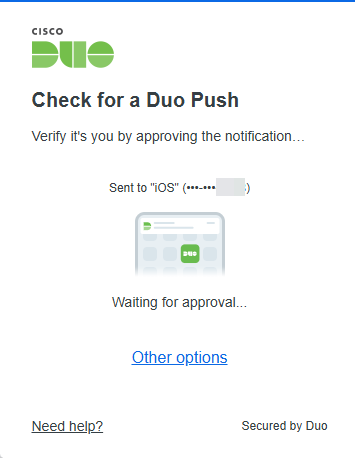
Depending on the options chosen during DUO registration and setup, the system will send an authorization request to the smart device linked to the account. Other options are available if the DUO smart app is not available. Click the other options link or other on screen instructions for available MFA options. Once the MFA process has been completed, the system will finish the login and display the My Info landing page.
My Info and Main Menu
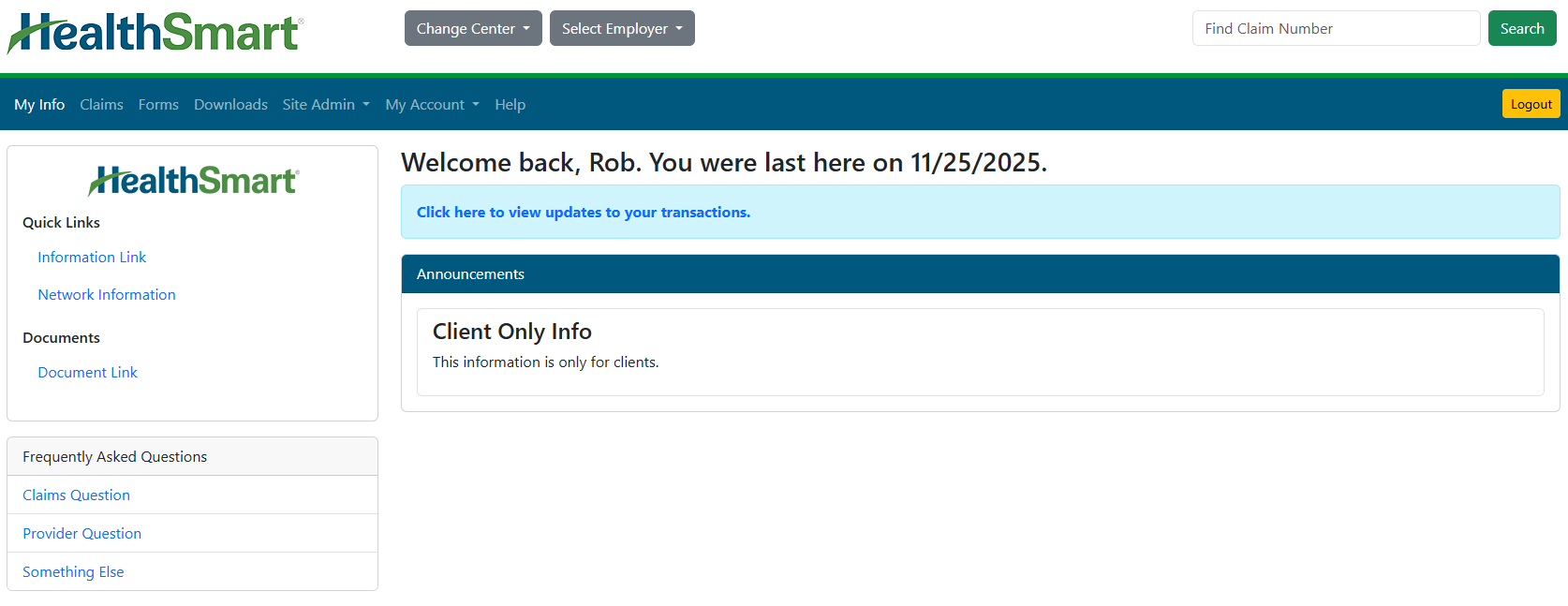
This is the main navigation menu in Web eXchange. Use the options listed in the image to access all the areas of the Web eXchange system.

My Info: The The Info Center menu option will take you to the main home page in Web eXchange. See the Help topic “Info Center” “My Info” for details.
Claims: Search for claim and status information based on your client access.
Forms: Ask Questions, fill out web/online forms, or download-able forms (not all forms available for all plans). See the Help topic “Forms” for details.
Downloads: The Downloads area allows the Client group to access documents that have been placed out for download to the Client. An example would be monthly reports. See the Help topic “Downloads” for details.
Site Admin: A A control panel for the Client to administer their portion of the Web eXchange system. See the Help topic “Site Admin” for details.
My Account: Access your account settings to change your e-mail address or password - Access account settings and transaction history.
Help: Access this help guide.
Logout: Exit the Web eXchange system, and return to the main login screen.