-
Created by
 Justin Musick, last updated by Rob Ables on Dec 04, 2025
2 minute read
Justin Musick, last updated by Rob Ables on Dec 04, 2025
2 minute read
Last Updated v1
The My Info page displays general information and announcements
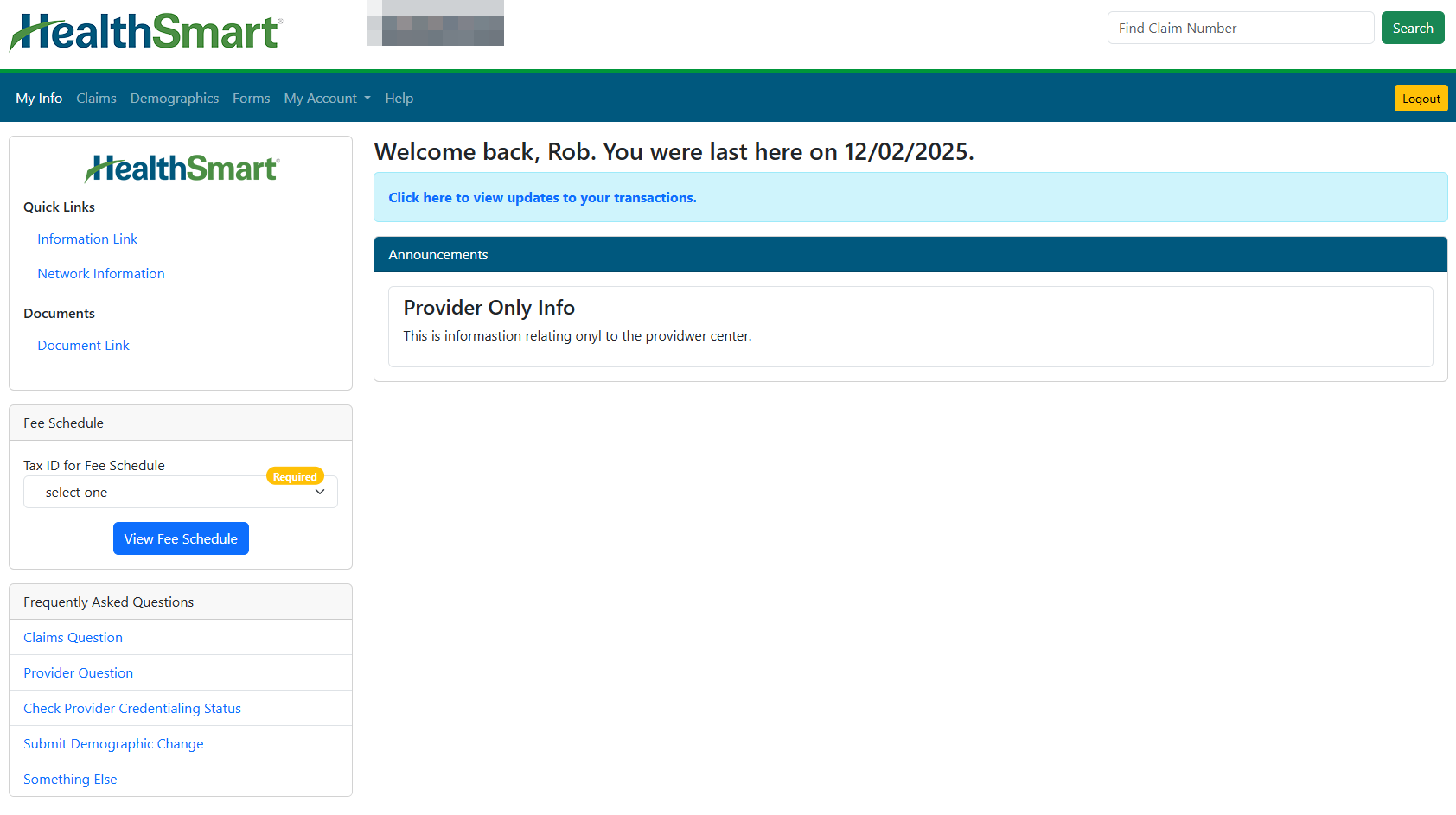
Left Link Bar
- Links - The left link bar can contains links to websites, information, and documents.
- Fee Schedule - The fee schedule option allows providers/practitioners to view/download a copy of the network fee schedule associated with their Tax ID/TIN.
- Select the Tax ID from the list (only IDs associated with the logged in account will be displayed).
- Once selected, click the View Fee Schedule button. If a fee schedule is on record for the selected ID, the web browser will download a copy in Excel format.
- The options to view/download the fee schedule file will vary based on the web browser used to access Web eXchange.
- Frequently Asked Questions - This section provides links to other forms, search screens, and information in Web eXchange.
- Some options will deliver you to the Claims or Demographics search pages. Find the claim(s) or provider(s) for which you wish to request/update information, select them, and use the Question option above the search grid.
- Some options will deliver you to the Forms page. Find the desired form or question options and follow the on screen instructions to complete the process.
Menu Options

- My Info - The My Info menu option will take you to the main home page in Web eXchange. See the Help topic “My Info” for details.
- Claims: Search for claim and status information based on your client access.
- Demographics - Search for practitioner/provider/facility information.
- Forms: Ask Questions, fill out web/online forms, or download-able forms (not all forms available for all plans). See the Help topic “Forms” for details.
- My Account - Access account settings and transaction history.
- Help: Access this help guide.
- Logout: Exit the Web eXchange system, and return to the main login screen.