Last Updated v1
This screen is used to track questions and forms which have been submitted to HealthSmart Network Solutions. Every time a new question or form is filled out, a new transaction entry is created on this screen. Newer transactions are at the top of the list.
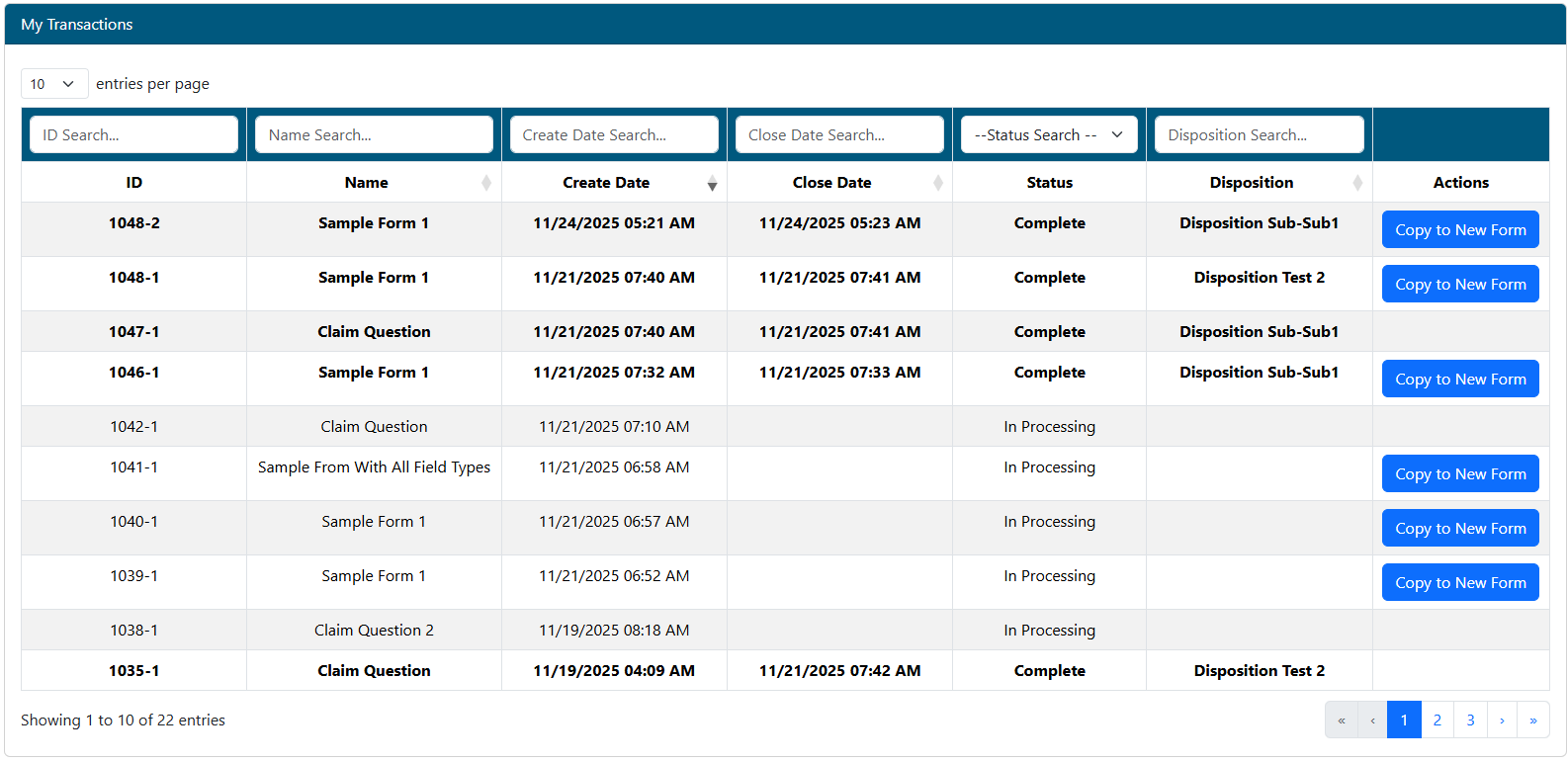
- Search/filter transactions in the list by entering criteria in any of the filter boxes above each column.
- Click any transaction to view more detail.
- ID - The transaction number is assigned when the transaction was first created. This number is unique to the transaction, and can be used as a reference number when communicating with the HealthSmart.
- Unread transactions are shown in bold text.
- Name - The name of the transaction/question/form.
- Create Date - Date the transaction was created.
- Close Date - Date the transaction was completed/closed.
- Status - Current status of the transaction.
- Disposition - This provides a description of how the transaction was handled.
- Actions - If the transaction was a Form, use the Copy to New Form option to create a new form with the original forms values pre-filled.
- Use this option to quickly fill forms that have similar information and only need minor updates before submitting the new form as a new transaction.
|
Transaction Detail
- The detail screen will show all information regarding the transaction.
- If the transaction was a Form submitted, click the VIEW FORM DATA button to review the original Form submitted.
- If more information needs to be sent on this transaction, click the REOPEN button, and fill out the form.
- If the transaction is not in a closed status, but it is no longer required (the issue has already been resolved), the Mark As Resolved button will be available to close the transaction.