Last Updated v1
Dynamic Forms
These screens allow the Admin Center user to build custom forms or questions that can be completed online by clients and providers. Once the user submits a form, it is sent to the Admin Center in the queue designated in the Routing Rules tab. Once in a queue forms/questions (AKA transactions) can be worked by staff or exported to a text file for external processing.
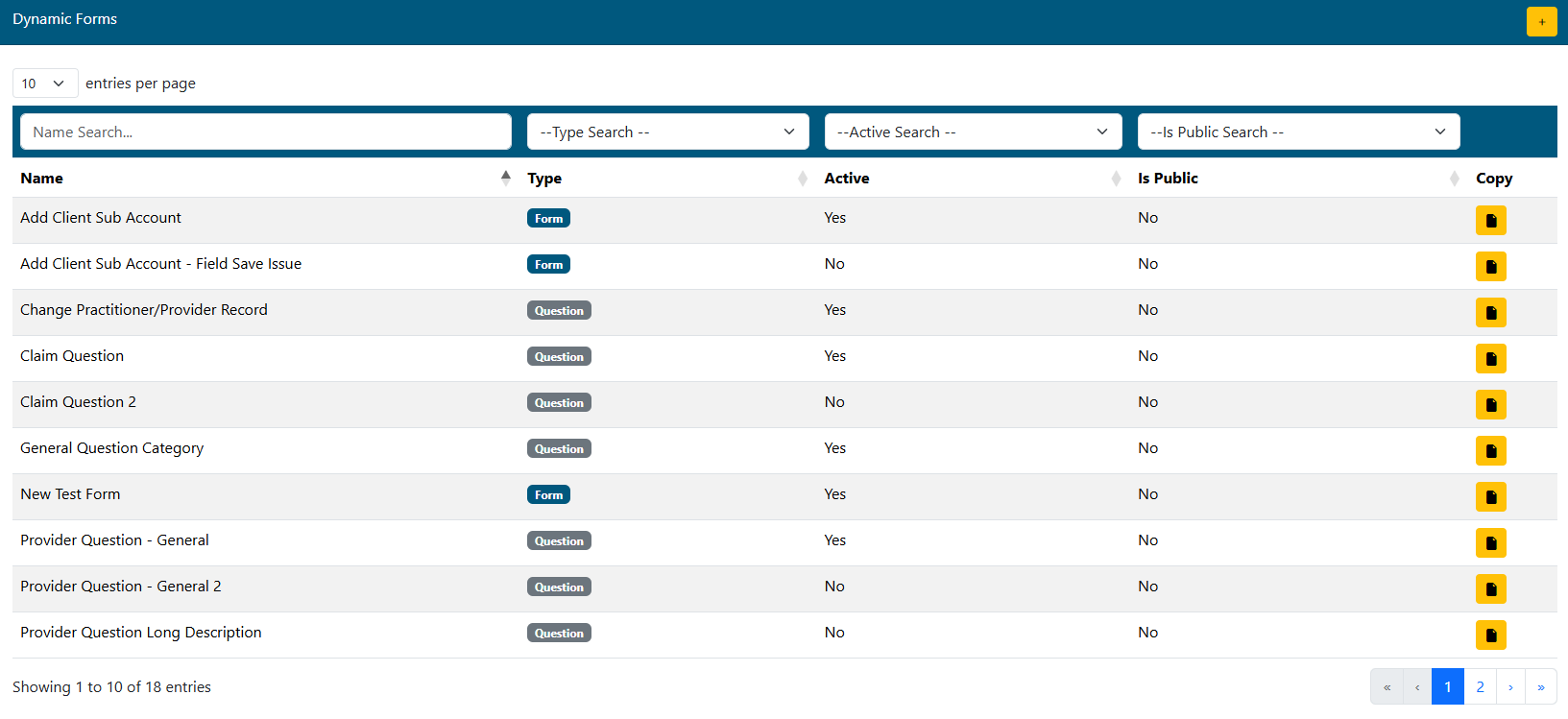
- Add a new form using the
 button in the top right of the grid.
 - Search for an existing form to edit using the filters above each column.
- Click on the desired form in the list to edit.
- Use the
 button to copy an existing form to a new form. Once copied, the new form can be edited and saved under that new name.
View Forms Tab
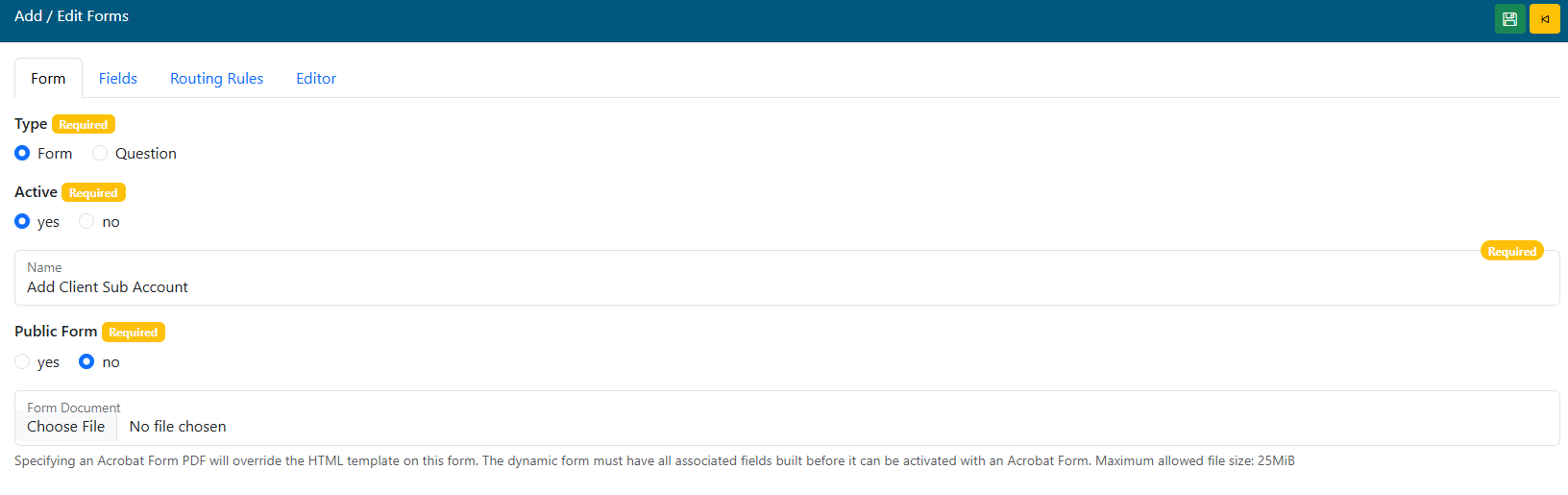
Form Version:
Question Version:
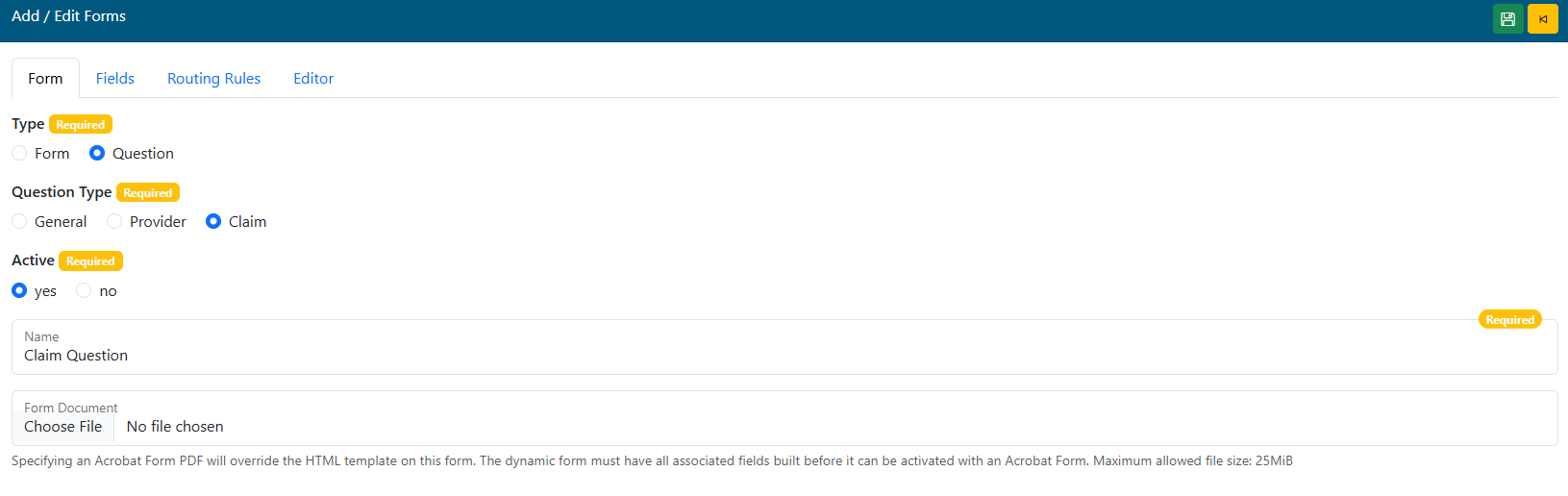
- Type - Form or Question.
- Selecting the type will change the field options on screen.
- The setup and build for forms and questions is almost identical, but where the form/question appears to the client/provider is different.
- Forms appear only on the FORMS menu option for providers and clients.
- Questions appear only in the QUESTIONS area above the CLAIMS and DEMOGRAPHICS searches for providers and clients. However, a Question assigned to the General question type will also appear on the FORMS menu option page.
- Question Type - This option only appears for Question Types.
- General - Only one General question type can/should be built. This general question will be displayed on the FORMS main menu option page.
- Provider - If this option is selected, the question form will be shown in the Provider Center under the Demographics menu option.
- Selection of a provider(s) from the demographics search list is required to submit a provider question. The selected provider(s) information will be attached to the question form and visible to the Admin Center use working the queue where the question is delivered.
- Claim - If this option is selected, the question form will be shown in the Provider or Client Center under the Claims menu option.
- Selection of a claim(s) from the claim search list is required to submit a claim question. The selected claim(s) information will be attached to the question form and visible to the Admin Center use working the queue where the question is delivered.
- Active - Select if this form is currently active, and will appear for the groups and centers designated. If Active is set to NO, this form will not be visible for any client/provider or center (this overrides all Routing Rules).
- Name - Add/Edit the name of the form/question. This name is what will appear on the list for the end users to select.
- Public Form - This option only appears for Form Types, and is a special option that is only used for specific scenarios. This form type is not visible inside the normal Web eXchange centers. It can only be called through a specific web URL and is normally used for data collection via referral from another website or system.
- A separate program that runs on the Web eXchange server allows that data transfer and must be setup and configured for any public form to work properly. Please contact the Web eXchange system administrator for more information. Setup details for this separate program are also available on the restricted HealthSmart Confluence server at: https://documentation.healthsmart.com/x/AgDT
- The public form URL that can be provided to an end user or external system will be displayed under the Public ID field after the form is saved.
- **The Routing Rules tab is disabled if Public Form is selected and a Public Form Queue field is displayed on the View Forms tab to choose the delivery queue for this public form.
- Form Document - This option only appears for Form Types. OPTIONAL: if a PDF form is added with this option, it will override the normal dynamic form process and the Editor tab will be disabled.
- Fields that match the PDF form field names will need to be added to the Form Fields tab.
- **Forms with this option added cannot be activated until all matching form fields are present.
- Once a PDF form has been added and saved (even as inactive), a button will appear to "Create Form Fields" and "Delete File".
- Create Form Fields: is this option to have the system automatically pull all form fields from the uploaded PDF and add entries for them in the Form Fields tab. This will save time and still allow specific settings to be set for each form field (read only, prefill, required, etc.)
- Delete File: this option will remove the attached PDF file from the form record. This can be used to remove the existing PDF and add a different PDF or move this form back into normal Dynamic form mode with no PDF. You can also choose a new version of the PDF file without deleting it first by using the Choose File button.
- PDF FORM Transaction ID Insertion (Optional). The system can insert the transaction ID into a field on the PDF form if needed. The PDF form template needs to contain a field called ""we_transaction_id" which will be populated when the form is viewed. It is the responsibility of the PDF to create this as a read only field.
- Fields that match the PDF form field names will need to be added to the Form Fields tab.
Form Fields Tab
**Form fields MUST be setup prior to using the From Editor. These are the fields the end user will be filling out on the form itself.
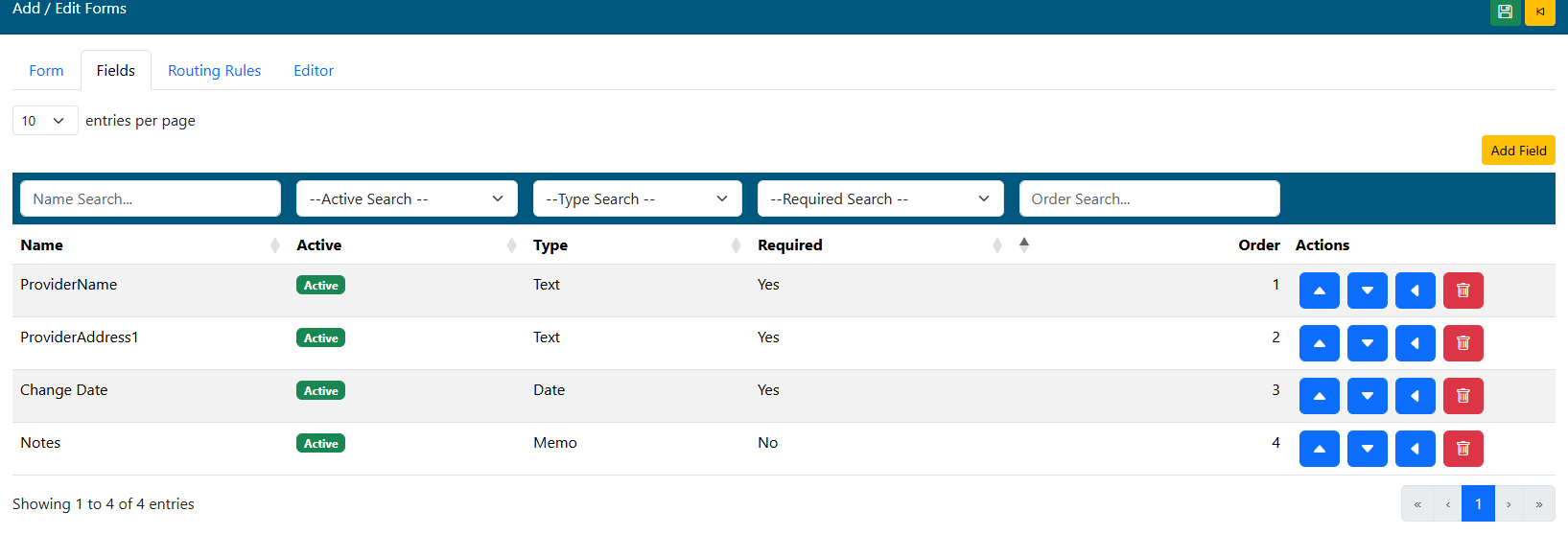
The Grid (List)
- Add Field - Add a new field.
- Search - Use the filter boxes above each column to search/filter the existing list of fields to find a field to edit.
- Click any Row to open and existing field to edit the details.
- Actions Column Options: (Field order only matters when NOT using the Editor tab to layout the form fields).

- Up - Move the field up one space on the list
- Down - Move the field down one space on the list.
- Move - Move the field to a specific location in the list.
- Delete - Delete this field (only available if the field has not been used on on a live form yet).
Field Add/Edit
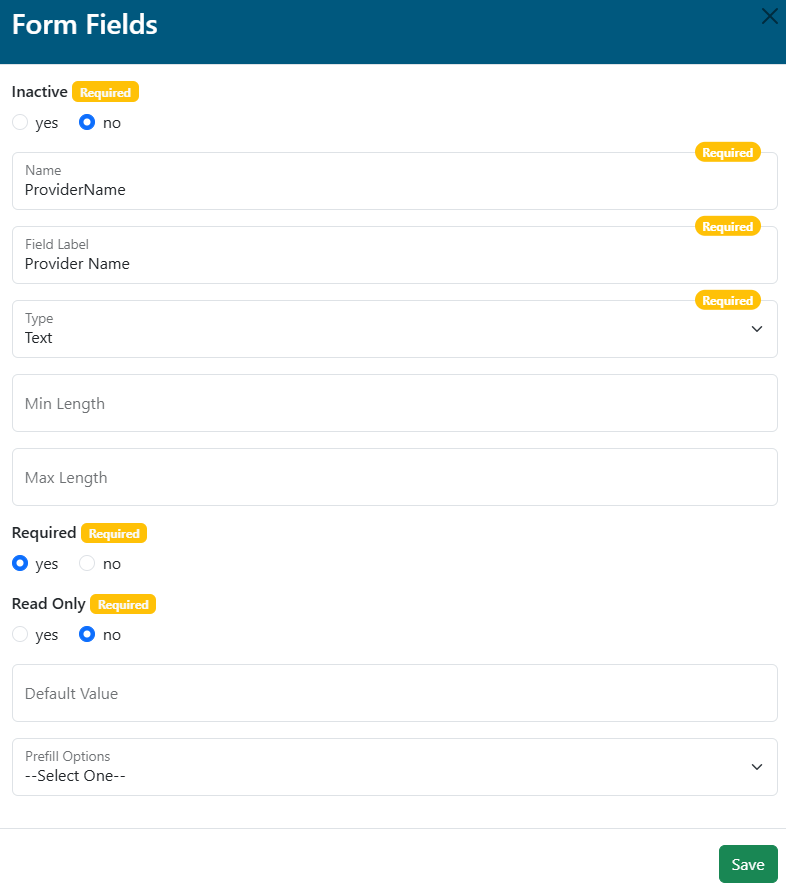
- Click any row from the grid list to open and existing field to edit the details or click the Add Field button to open an empty field box.
- Inactive - If an existing field needs to be removed from a form, set this option to YES. This will remove the field from new and historical versions of that form.
- If the field being inactivated is still on the form in the Editor tab or on the PDF (if it is a PDF fillable form), a validation error will display when the field is saved. First, remove the field from the Editor or PDF and then inactivate it here.
- Name - Enter the Name of the field itself (only visible in the admin center form setup areas).
- Field Label - This label will display above the field input on the form when presented to the user.
- Type - Enter the type of field. There are a list of options on the type drop down menu. Each type will add automatic validation to that field when the user fills out that field.
- Text - Accepts all standard text and numeric characters.
- Numeric - Accepts only numeric characters.
- Date - Accepts only data date format, and will require the user to enter the data in the proper format (MM/DD/YYYY). When building a custom form, it is a good idea to specify that required date format in the form field label.
- Currency - Accepts only numeric data, and the field will automatically format as currency ($).
- Limited List - This option will allow you to specify a list of items for the user to select from for this field. The OPTIONS field will be available once Limited List is selected, and saved.
- Options - Enter the options to be available in the limited list. Press Enter between each option. This can be as simple as a Yes/No list, or contain unlimited options to be selected.
- Memo - Accepts all standard text and numeric characters in a larger box with more text space.
- Yes/No- A simple selection option that will display a yes/no option box to the end user.
- File Attachment - This field type will display a browse button and allow the end user to attach a file to the form.
- The following options are disabled for this field type: Default Value, Read Only, and Prefill From Member.
- Field Options
- Min Length (Optional and only available for certain field types) - Specify the minimum length required when the end user fills out this field.
- Max Length (Optional and only available for certain field types) - Specify the maximum length required when the end user fills out this field.
- Required - Yes/No. A Yes selection will REQUIRE the end user to complete this field before the form can be submitted. Use this only when you are positive the user will always have this information available to complete the form.
- Read Only - Yes/No. If the field should display data on a pre-filled form, but not be editable, select this option.
- Default Value (Optional) - Any text entered in this field will show up on the form for the user to see. This can be used to assist the user in knowing what type of data is required in this field. This field is not required, and can be left blank.
- Pre-Fill Options- If the form itself is a Provider or Claim question type, this option will be visible for each field. Select from a list of web service fields that can pre-populate the field on the form for the end user.
- SAVE - Click the save button to save the changes and return to the field list.
Routing Rules Tab
This tab allows you to specify what Centers and Clients/Providers can see this form. Routing rules can be used in any combination to allow flexibility.
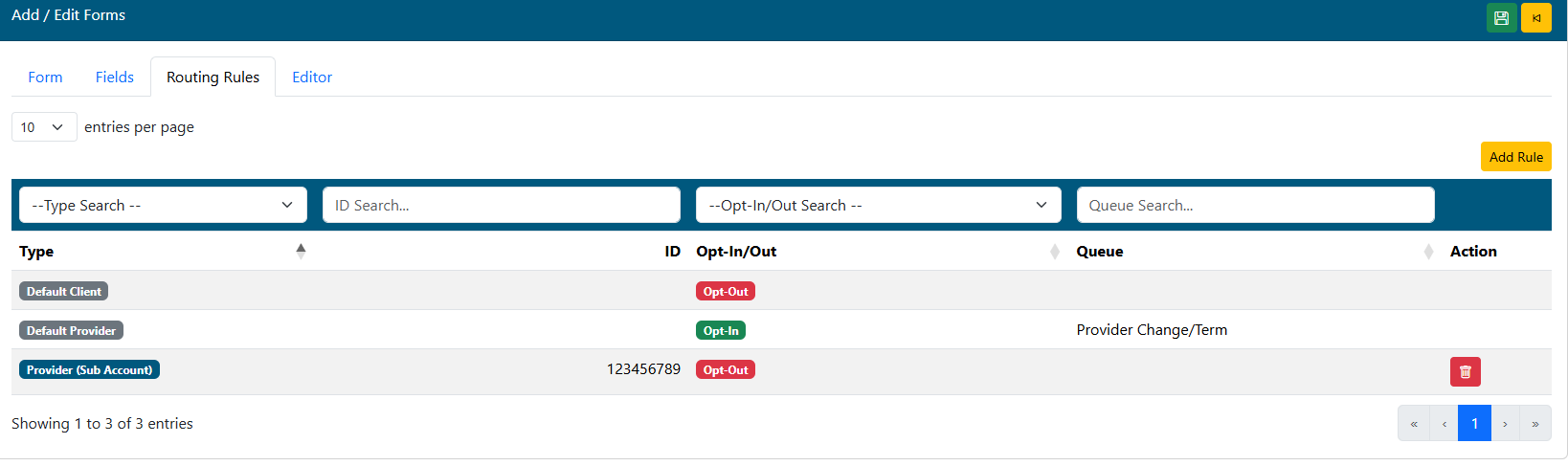
- Use the filter boxes at the top of each column to narrow down the list of existing routing rules.
- Select the desired rule to edit by clicking on the row.
- Default Rules - Default rules for Provider and Client centers are always created by the system when adding a new form. These rules are set with Opt-Out by default, and will keep this form from showing on any Centers until it is modified manually, or until a specific Client/Provider based routing rule is added below it.
- If you wish to have this form show for ALL Clients, edit the Default Client rule and change it to Opt-In.
- If you wish to have this form show for ALL Providers, edit the Default Provider rule and change it to Opt-In.
- Add Rule - Select this button at the top to add a new routing rule that will override the Default Rule. The Default Rule will remain in effect for any clients/providers that are not listed in the new rule.
- Delete - Deletes the rule record. This cannot be reversed.
Add/Edit Rule Window
Client Rule Option:
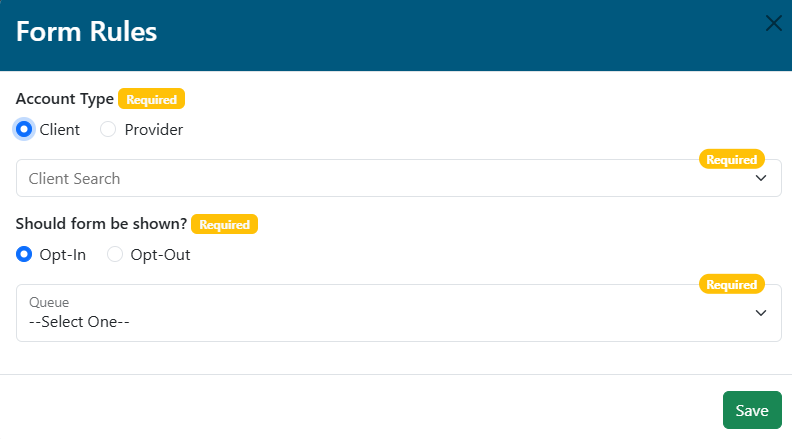
- Account Type - Select Client.
- Employer/Client Search - Enter the client ID or name and select the matching result from the list.
- Should form be shown? - Select Opt-In to show this link for the Client. Select Opt-Out to hide this link from the Client.
- Queue - Select the Admin Center queue where the form will be delivered for processing.
- Click the SAVE button to save changes.
Provider Rule Option:
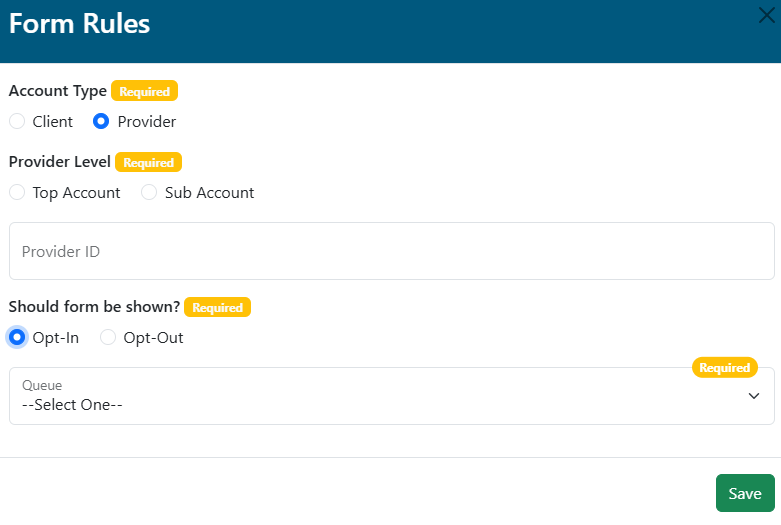
- Account Type - Select Provider.
- Provider Level - Select Top Account or Sub Account.
- Provider ID - Enter a top account ID or individual provider sub account ID (TIN).
- Should form be shown? - Select Opt-In to show this link for the Provider. Select Opt-Out to hide this link from the Provider.
- Queue - Select the Admin Center queue where the form will be delivered for processing.
- Click the SAVE button to save changes.
Editor Tab (Optional)
The editor allows us to create custom form layouts. If no editor items are added, the form will display with one field after another based on the Form Fields tab items. Once a layout is specified on this Editor tab, it will override the default generic form layout, and display what is setup here. Live training is typically provided before working with the Editor.
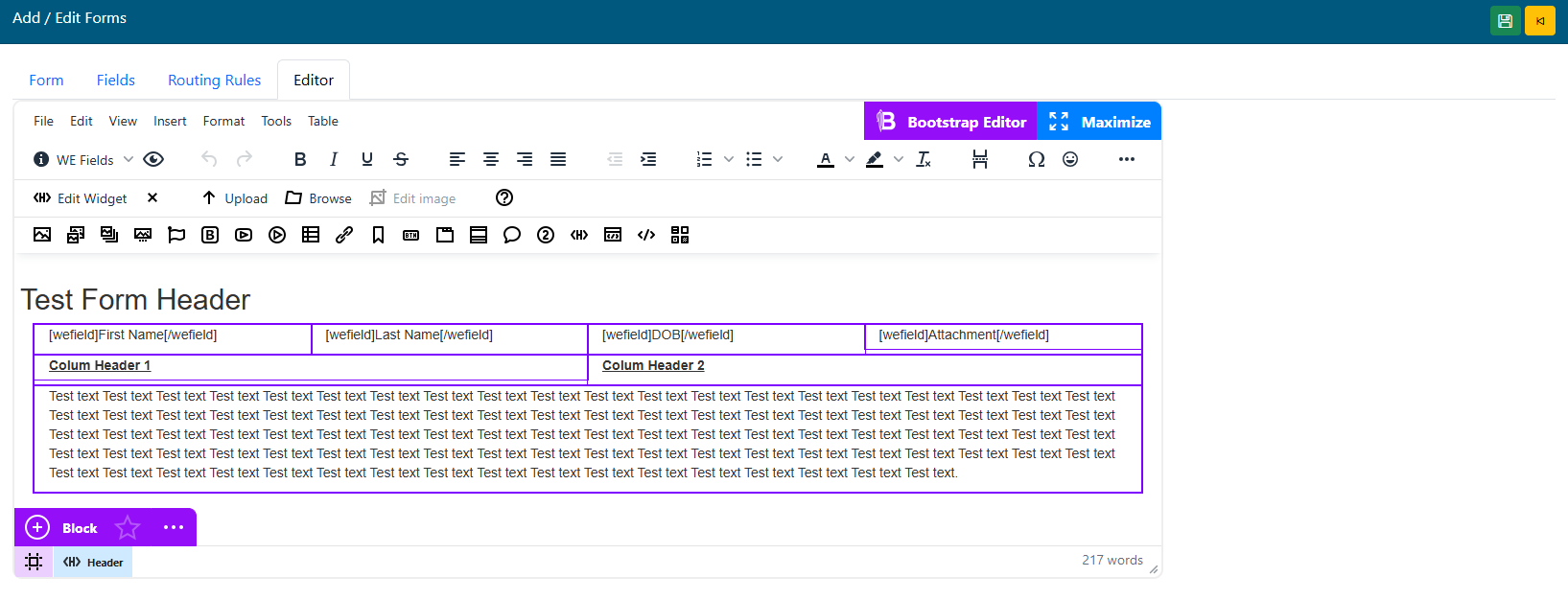
Bootstrap Editor
Click the Bootstrap editor button to enter the layout node. it may be easier to add sections in this mode than from the main editor screen.
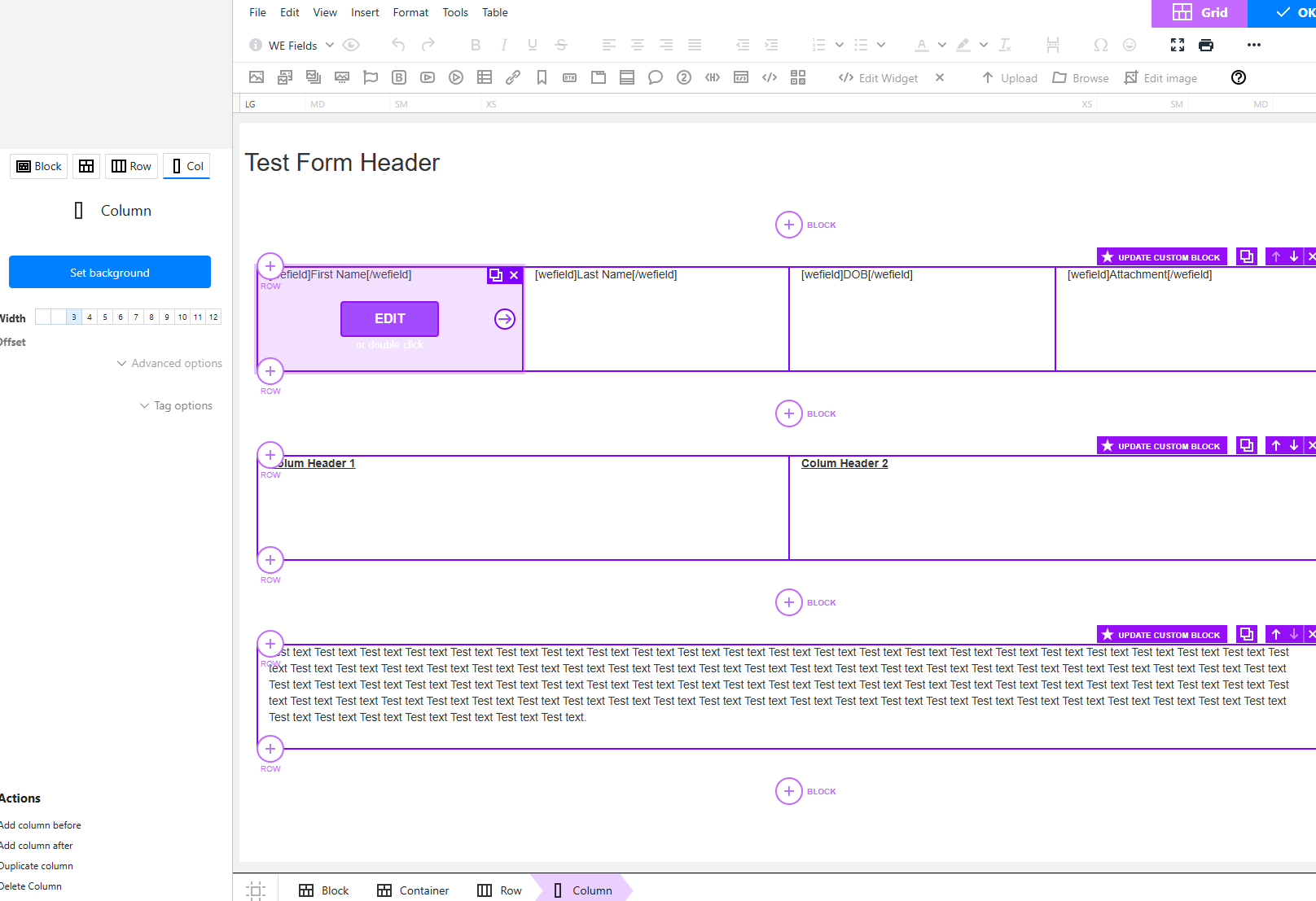
- Once the Bootstrap editor has been setup to define the blocks, containers, columns and rows, Use the editor toolbar to add fields and other layout elements similar to a Microsoft Word document.
- The WE FIELDS drop down list (shown in the sample above) allows us to insert the fields we created on the From Fields tab.
- Think of this like a Word merge document. In one table column, you can type the label for the field. In the next, you can insert on of our Fields that the end user will see to enter the actual form data.
- Hover over toolbar icons to see what each option offers.
- Most of the options are typical text editing features like bold, center, font size, etc.
- Insert text, labels, blank sections for spacing, separator lines, images, etc. as need to make the form appear as professional as possible.
- A Save icon
 is available on the Forms toolbar to save changes.
 - Always save changes to the form and before using the preview option.
- Use the Preview
 icon to see what the form will look like to the end user.