-
Created by
 Rob Ables, last updated on Jun 21, 2019
5 minute read
Rob Ables, last updated on Jun 21, 2019
5 minute read
How To Access This Page In IWS
Main Menu → Department Admin → Document Type
Document Type Administration
This section of the Department Admin area allows authorized administrators of the specified department to create new document types for their department. A document type is defined as a categorization of a specific image, file, form, or document that will be captured, routed and stored in the IWS system. For example: a Legal department may wish to bring their "Vendor Contracts" into IWS to route through a specified set of workflow queues to be processed and then ultimately stored in IWS for archive and future retrieval. The "Vendor Contracts" is the Document Type in this example. In the Document Type admin area, we will tell the IWS system how to classify, index, and route the "Vendor Contracts" each time one is brought into the system. We will also be able to set security for what users and groups in the department can access the document type.
There are multiple versions of Document Types that can be setup in IWS for different purposes. These are called "Form Types" and are defined in the Document Type section below.
Document Type (Tab)
In this first tab of the Document Type admin area, we can define all of the default settings for the Document Type.
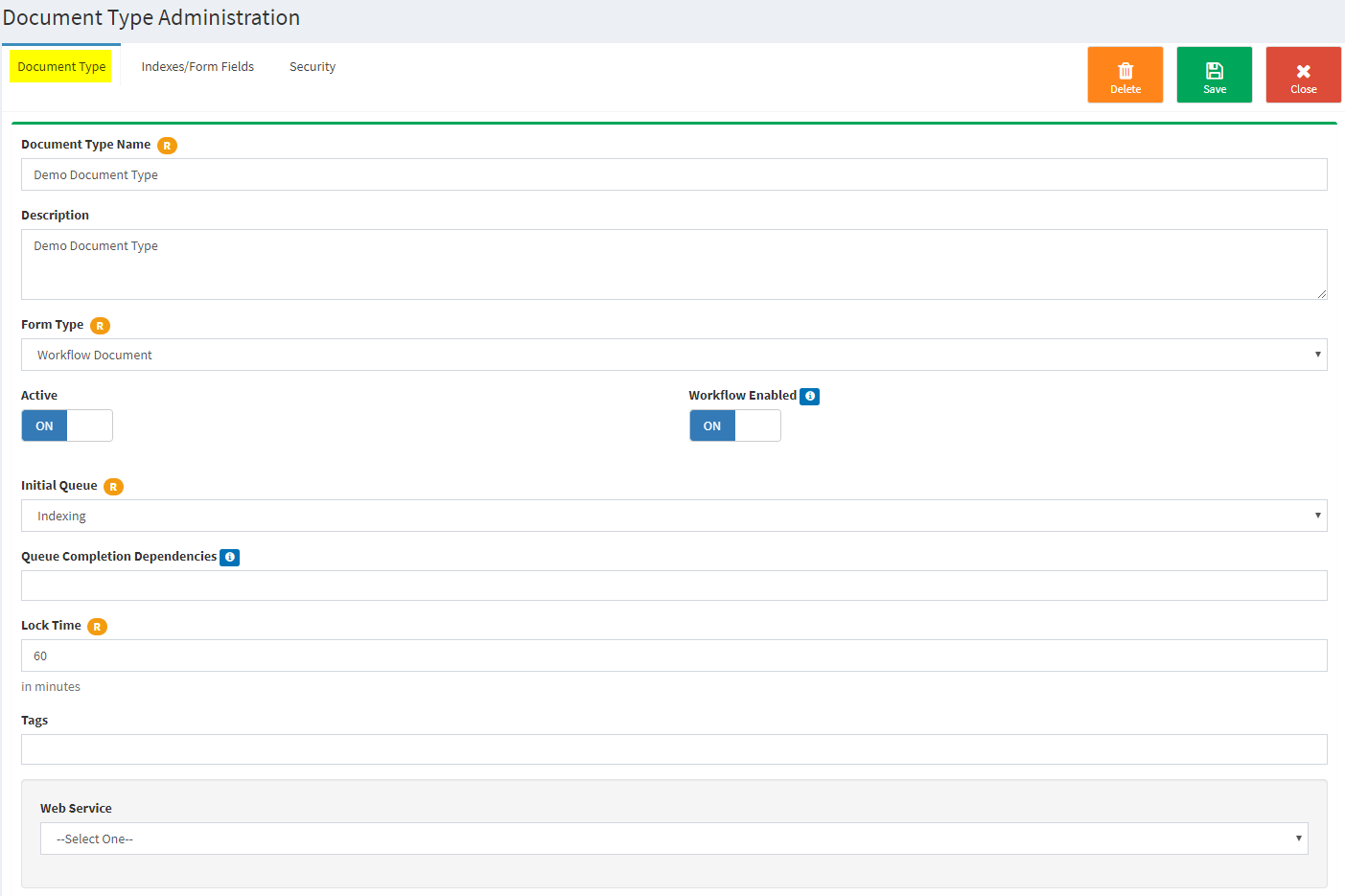
- Document Type Name: The name of this document type that will display throughout the IWS system.
- Description: Enter a description of what this document type is used for in the IWS system. This data is only viewable on this screen.
- Form Type: Select the type of form this document will be. The definitions of each are below:
- Audit Form: Used for the IWS auditing module. If you need to create a form to use in the auditing process, this is the option to select.
- Form Attachment: This form type can be used to create online forms that can be filled out and attached to an EXISTING primary document as it goes through workflow. Only select this option for that special scenario.
- Workflow Document: This is the primary form type used in IWS and is the standard to select for a regular document type that will be scanned, emailed to uploaded into the IWS system for workflow.
- Workflow Form: Selecting this form type will allow you to create a custom online form using the Index/Form Fields tab. This Workflow Form will be the primary document going through workflow once it has been filled out by a user on the My IWS - New Workflow Task screen. This document type will flow through workflow just like the Workflow Document form type does. The only difference is this is an online form that is filled out inside of IWS rather than a scanned, emailed or uploaded document. This document type is also automatically indexed based on the form fields that are filled out during form entry. Therefore, the Initial Queue selected for this type of form should not be an indexing queue. Instead, it should route to a standard queue for processing or have workflow disabled if it is only being entered for storage. Please be sure to setup any queue rules on the queue you route these to if you want automated workflow.
- Active: Is this document type currently active in the system?
- An inactive document type cannot be selected to bring new documents into the system.
- You must assign at least one index field or index set, and one user to access the document type before it can be activated.
- Workflow Enabled: Is this document type enabled for workflow beyond initial Indexing?
- ON: This document type will process through standard workflow queues assigned to it.
- Off: This document type will move to storage only after initial indexing (it will only be available through the search areas).
- Initial Queue: What is the first queue in workflow that you want this document type delivered to?
- **This is almost always an Indexing queue as that is the first thing that should happen to documents when they enter the system.
- After the initial queue, queue rules setup on the indexing queue will route the documents. If no queue rules are present that match the document, the workflow user can route the document manually.
- Queue Completion Dependencies: What queues in your department do you want the system to guarantee this document type completes before exiting workflow?
- Any queues selected here will be required before a workflow user can remove the document from workflow (the last step in the process).
- This option does NOT route the documents to these queues. It just checks at the time of removal from workflow to make sure any required queues were completed at some point in the workflow process.
- The indexing queue cannot be selected here as it is already the initial queue.
- Lock Time: Specifies the amount of time (in minutes) a workflow processor is allowed to have a document open for this document type. While the document is locked, no other workflow processors can access the document in the queue. IWS implements a "Soft Lock" setting which allows the system to give the document back after the time limit is reached. This will account for any documents that have not been properly closed by a workflow processor. Keep in mind how much time it should take to process the workflow document for this document type when modifying this setting.
- Tags: Custom defined tags can be added to help find this document type via the document type search grid in the department admin area (not yet implemented in version 6.)
- Web Service: Options appearing in this selection will differ for every IWS installation and department. This selection will contain a list of legacy systems which IWS can share data with. This stops the duplication of indexing information on a document when the data is accessible in another system. See your system administrator for information regarding each selection which may appear in this box. After a document exists in the system filed under this document type, this field can no longer be modified.
Related Pages
There is no content with the specified labels