-
Created by
 Rob Ables, last updated on Mar 27, 2026
3 minute read
Rob Ables, last updated on Mar 27, 2026
3 minute read
The My Info screen is the initial page that loads when logging into the Admin Center.
Last updated v1
From this page the user can see a welcome message, outstanding sign up request numbers, available queues, and transaction and claim lookup boxes.
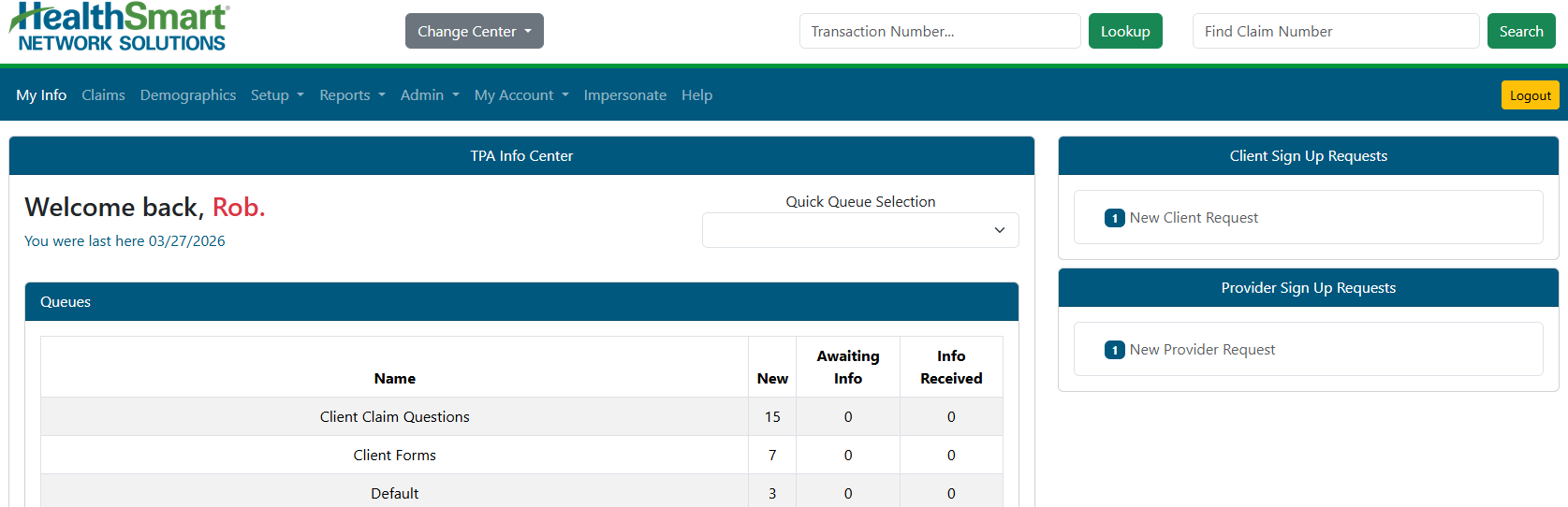
- Change Center (If available) - If your Web eXchange account has access to multiple centers (Admin and Client, for example), you can change between those centers using this option without logging in and out for each.
- Transaction Lookup - Enter a Web eXchange transaction number in the lookup box to jump directly to that transaction detail.
- Find Claim Number - Enter an HRP system claim number in the lookup box to jump directly to that claim detail.
- Logout - Use this option to sign out of the Admin Center.
- Quick Queue Selection - Use this list to access any queue (if access allows) and go directly to the queue. This is helpful if you need to access the Transaction History tab in a queue, but the queue is not visible in the normal Queues list because it has no current transactions.
- Queues (if access allows) - A list of queues will display containing transactions to be worked. Queue access is granted by your supervisor. See the Queues section of this documentation for more information.
- Sign up Requests (if access allows) - Click the link under each grouping to go directly to the sign up request for review. These options are also available under MY ACCOUNT menu option.
Main Menu
This is the main navigation menu in Web eXchange. Use the options listed in the image to access all the areas of the Web eXchange system.

My Info - The Info Center menu option will take you to the main home page in Web eXchange. See the Help topic “My Info” for details.
Claims - Search for claim and status information.
- Demographics - Search for practitioner/provider/facility information.
- Setup - Access multiple sub-menu options for system setup areas like Announcements, Links, Forms, etc.
Reports - Access admin level reports.
Admin - This menu option and its sub-menu options are typically restricted to IT/Development staff and contain system setup information. Some users may be granted access to certain items on this menu.
My Account - Access account settings and transaction history.
- Impersonate - With proper access, this option can be used to impersonate Client and Provider center users. This can be helpful to troubleshoot account issues for clients and providers as well as ask questions and fill out forms on their behalf.
- Any data submitted on behalf of a client or provider will be stamped with the Admin center user account that completed the process along with the user they impersonated.
Help - Access this help guide.
Logout - Exit the Web eXchange system, and return to the main login screen.