-
Created by
 Rob Ables, last updated on Dec 16, 2025
3 minute read
Rob Ables, last updated on Dec 16, 2025
3 minute read
Last Updated v1
Add/Edit Announcements
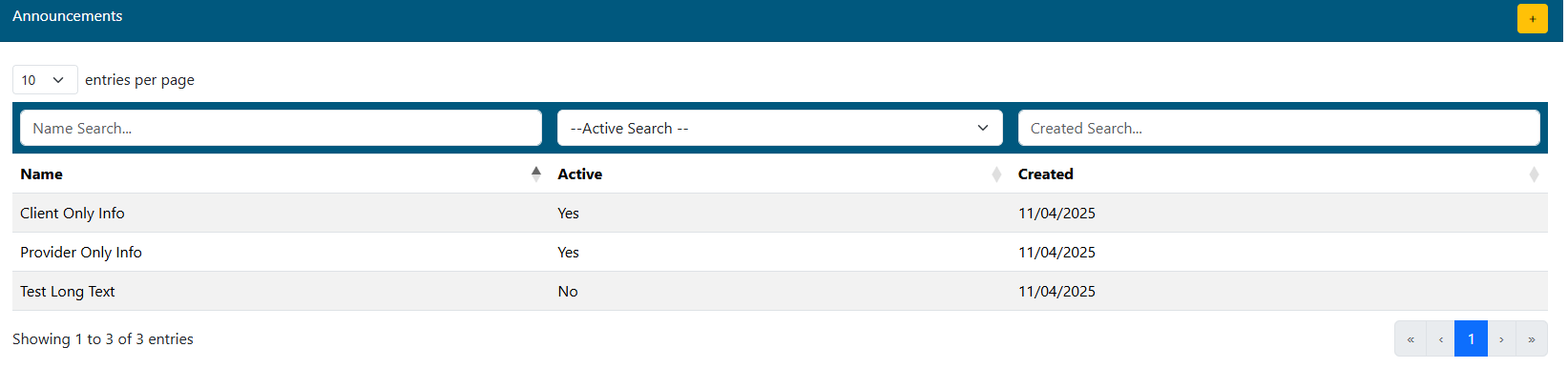
- Add new announcement
 .
. - Search for announcement records by typing into the filter box.
- Select announcement record to edit details.
- Page through announcement records.
Announcement Details
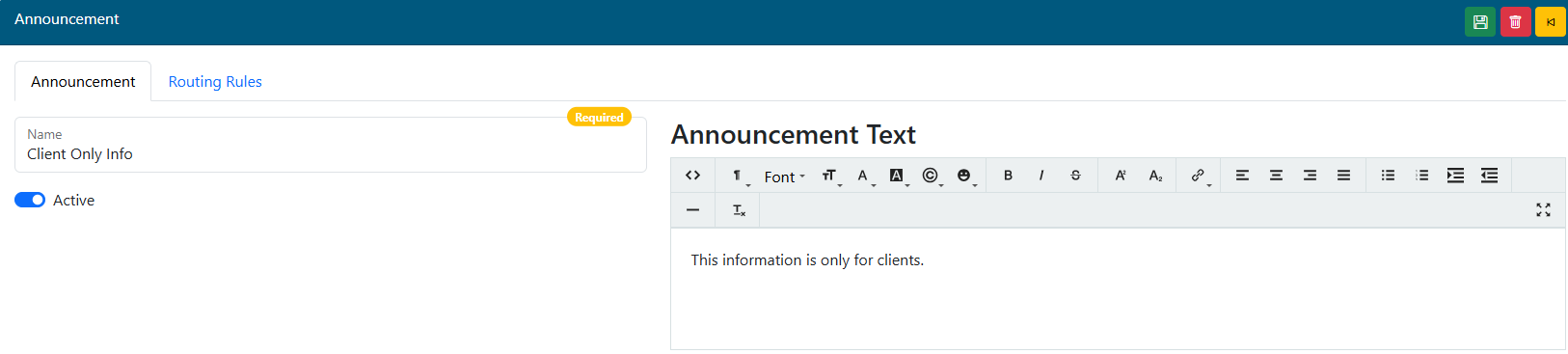
- Name of announcement.
- Active - Whether the announcement is active or not.
- The details of the announcement.
- Save the announcement record
 .
. - A delete icon
 will be available for existing records that are being edited.
 - Use the back button
 to return to the list of announcements.
Routing Rules
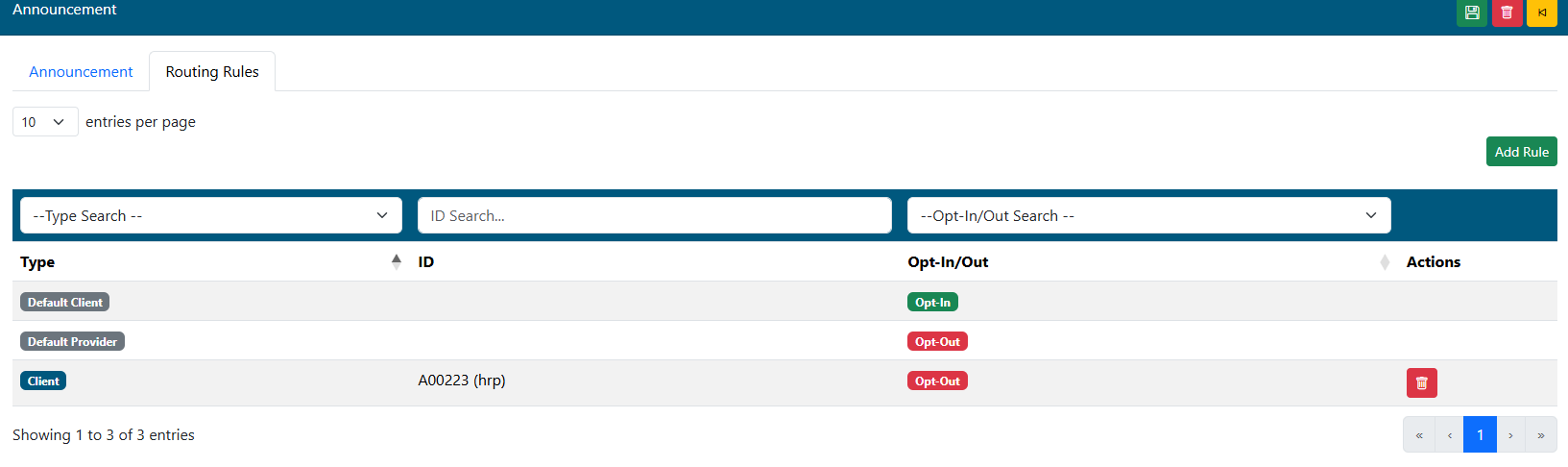
Routing rules tell the system what centers, client groups, or providers should see this announcement. The Default rules exist to either show the announcement to everyone on the selected centers, or to NOT show it if the centers are not selected. Individual client rules can then be added to work with the default rule. The search columns at the top of the rule grid list can help find a specific rule record to edit.
- To add a new rule, click the Add Rule button (see Add/Edit Rule below for details).
- To edit an existing record, click the row from the grid list (see Add/Edit Rule below for details).
- Any existing rule record can be deleted using the red delete (trash can) icon at the end of the row.
- ***The default rule cannot be deleted.
Add/Edit Rule
Client Based Rule:
Provider Based Rule:
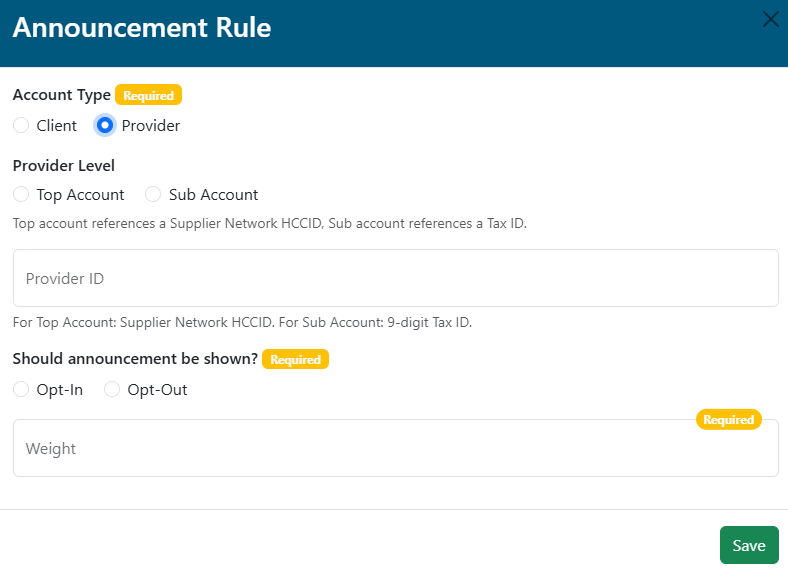
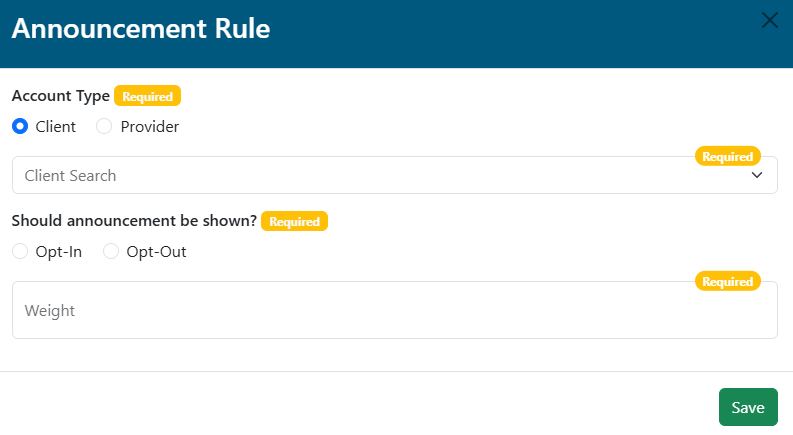
- Account Type: Select Client or provider for this rule.
- If Client is selected, enter the client name or number in the Client Search box to find the client this rule should apply to.
- If Provider is selected, selected, choose if the provider ID for this rule should be based on the Top Account or the Sub Account.
- Enter the Provider ID.
- Top accounts expect a valid top account ID as found in the HRP system.
- Sub Accounts will take any valid TIN/Tax ID.
- Should announcement be shown?:
- Select Opt-In to show this announcement for the selected Client or Provider.
- Select Opt-Out to hide this announcement for the selected Client or Provider.
- These options can be used in conjunction with the default rule for the matching center (Client or Provider). If the default rule is Opt-In for all clients, but a client specific rule is set to Opt-Out, the client specific rule will override and NOT show the announcement to that Client.
- Weight: Where will this announcement appear in the list of all available announcements? The lower the number, the higher it will appear on the list.
- Example: A weight of 1 will appear higher on the list than an announcement with a weight of 50.