-
Created by
 Rob Ables, last updated on Dec 17, 2025
6 minute read
Rob Ables, last updated on Dec 17, 2025
6 minute read
Last Updated v1
Links
Links can be setup to provide connections to outside websites or documents that can be downloaded. Depending on the Routing Rules attached, a link can be displayed for Client and/or providers with several options.
List
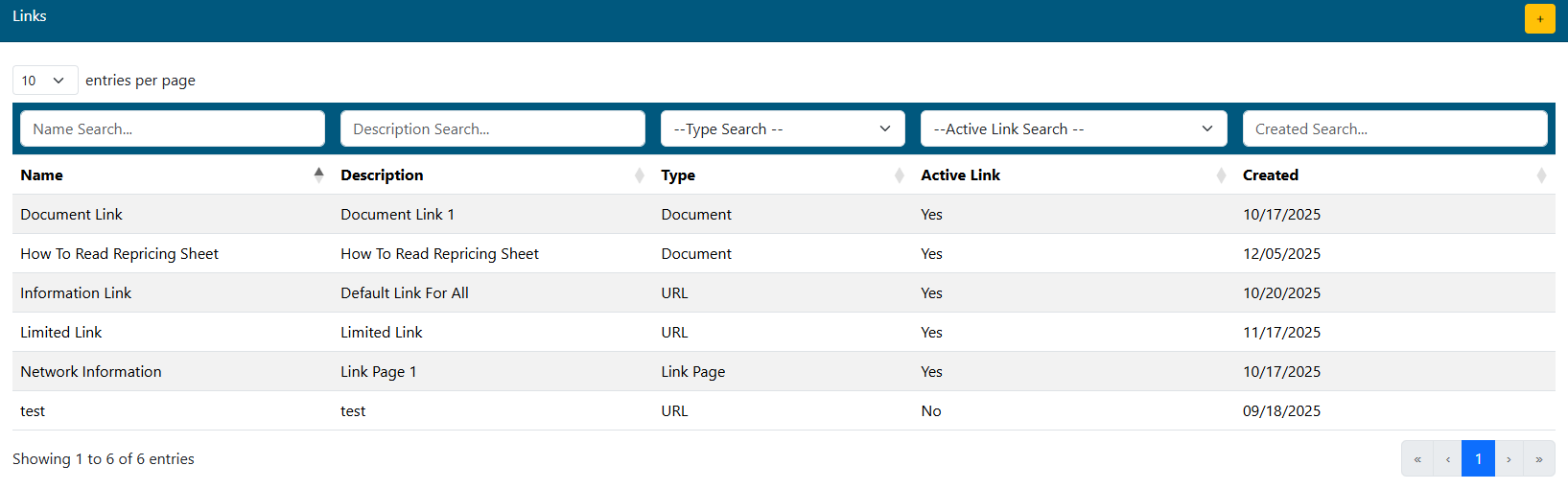
- Use the filter boxes at the top of each column to narrow down the list of existing links.
- Select the desired link to edit by clicking on the row.
- Add a new link using the
 button.
Link Detail
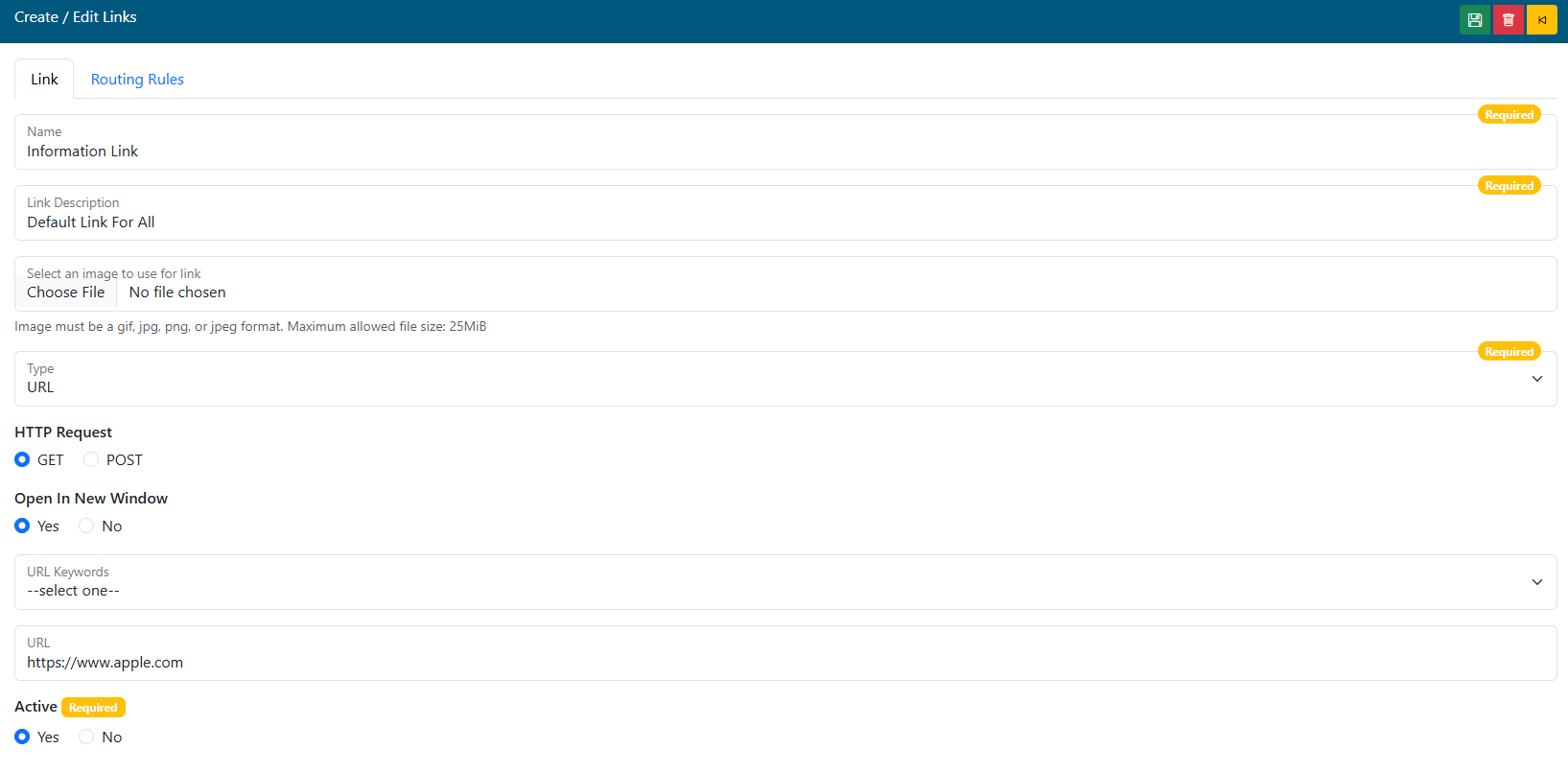
- Name - Add\edit a name for the link. This name will appear on the links bar for any Centers added on the routing rules tab.
- Link Description - Add a custom description for this link. This helps identify links with same/similar Names. This is not visible outside this admin screen.
- Select an image to use for link (Optional) - If an image file is selected, the image will replace the text in the NAME field when the link is displayed to the user on the link bar. If no image is selected, the NAME text will be displayed to the user.
- Type - Chose the type of link to display. The options are listed below.
- URL - A link to an outside website.
- Fields for HTTP Request Type, Open in New Window, URL Keywords and the URL itself will be displayed if this type is chosen.
- HTTP Request.
- GET is for a standard website link.
- POST is used for special link where the URL Keywords option would be used to submit or "post" information to an external website.
- This is a specialty option and not often used. Please ask the system admin/development team for guidance as needed.
- Open In New Window.
- Yes - Select if this link will open in a new browser window when the user clicks it from the link bar (preferred method).
- No - Select if this link will open in the same window as Web eXchange (will take over the Web eXchange session).
- URL Keywords - Select keywords to be sent in the URL to the external website. Used in conjunction with the POST option above.
- Leave empty for the standard GET link request types.
- URL - Enter the full website URL the user will be delivered to.
- Example: https://www.healthsmartnetworksolutions.com
- HTTP Request.
- Fields for HTTP Request Type, Open in New Window, URL Keywords and the URL itself will be displayed if this type is chosen.
- Document - A link to a document the user can download.
- A Document field will be displayed to choose the document to upload into the system.
- Link Page - This will take the end user to a separate page that can display multiple links. Use this option if you can categorize multiple links together rather than making separate Links for each one. This will keep the link bar from being cluttered (see the Link Page section below for more detail).
- URL - A link to an outside website.
- Active - Chose if this link is active or not. Only active links show on the link bar for users to see.
Link Page
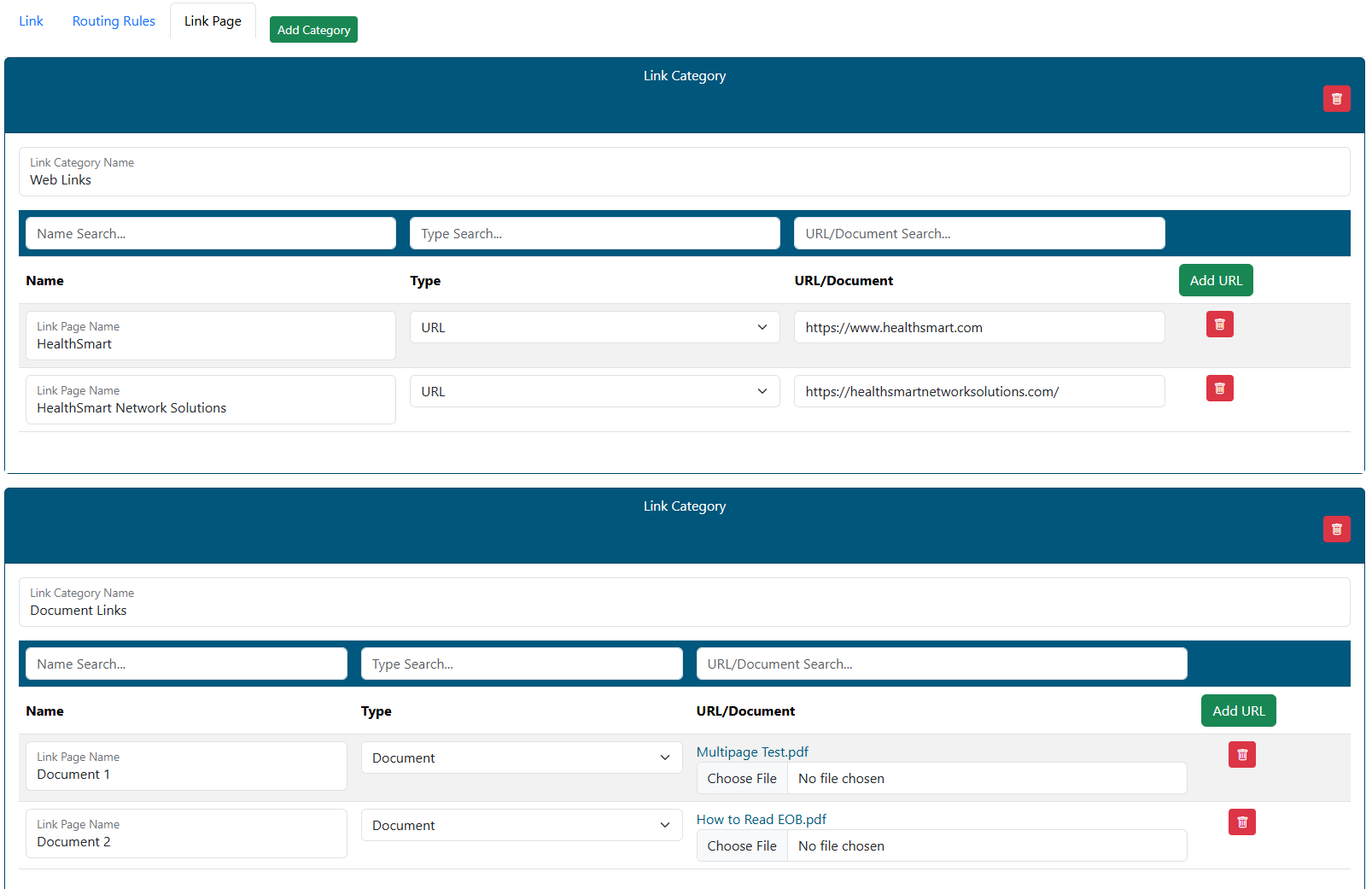
- Add Category - This will add a category to your link page. A category is a grouping of links on the link page. In the screenshot above, our first category is "Web Links". You can have multiple categories on one link page. The second category on the screenshot above is "Document Links". Categories can be named anything.
- Link Category Name - Name the category as you want it to appear on the link page for users.
- Add URL - Click this button to add a new URL link to this category (this button adds a new row to the category for a URL or a document type link).
- Name - Name the link itself.
- Type - Select what type of link this line will contain (URL or Document).
- URL/Document - Enter the URL (ex: http://www.google.com) or browse for the document to attach.
- Delete
 - Delete a row.
- Primary Menu Delete - Top Menu - This will delete the entire link page.
- Click the SAVE
 icon to save changes.
Routing Rules
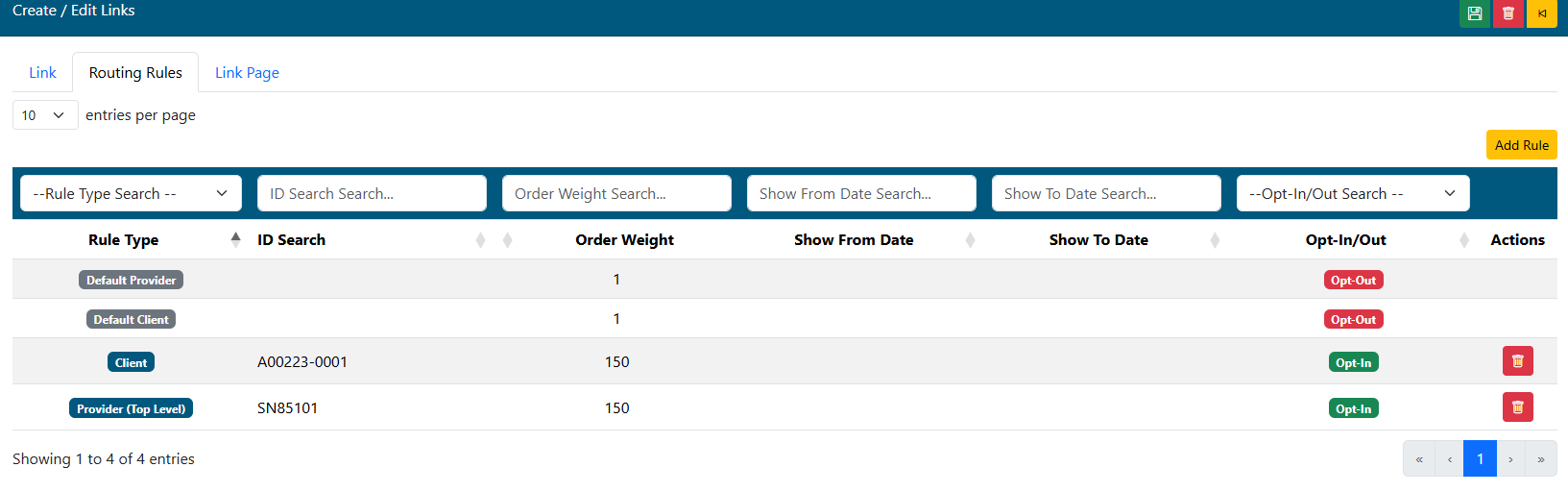
- Use the filter boxes at the top of each column to narrow down the list of existing routing rules.
- Select the desired rule to edit by clicking on the row.
- Default Rules - Default rules for Provider and Client centers are always created by the system when adding a new link. These rules are set with Opt-Out by default, and will keep this link from showing on any Centers until it is modified manually, or until a specific Client/Provider based routing rule is added below it.
- If you wish to have this link show for ALL Clients, edit the Default Client rule and change it to Opt-In.
- If you wish to have this link show for ALL Providers, edit the Default Provider rule and change it to Opt-In.
- Add Rule - Select this button at the top to add a new routing rule that will override the Default Rule. The Default Rule will remain in effect for any clients/providers that are not listed in the new rule.
- Delete - Deletes the rule record. This cannot be reversed.
Client Rule Option:
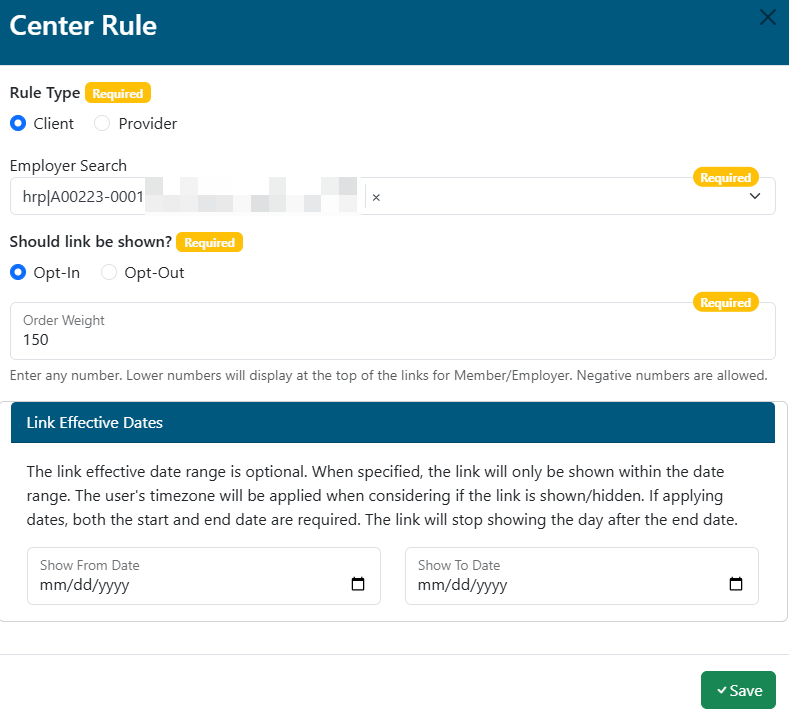
- Rule Type- Select Client.
- Employer/Client Search - Enter the client ID or name and select the matching result from the list.
- Should link be shown? - Select Opt-In to show this link for the Client. Select Opt-Out to hide this link from the Client.
- Order Weight - If there are multiple links setup that a group can see, how high on the list will this rule show. 1 for top of list, 2 for second, and so on.
- Link Effective Dates (Optional) - The link effective date range is optional. When specified, the link will only be shown within the date range. The user's time zone will be applied when considering if the link is shown/hidden. If applying dates, both the start/FROM and end/TO date are required. The link will stop showing the day after the end/TO date.
- Click the SAVE button to save changes.
Provider Rule Option:
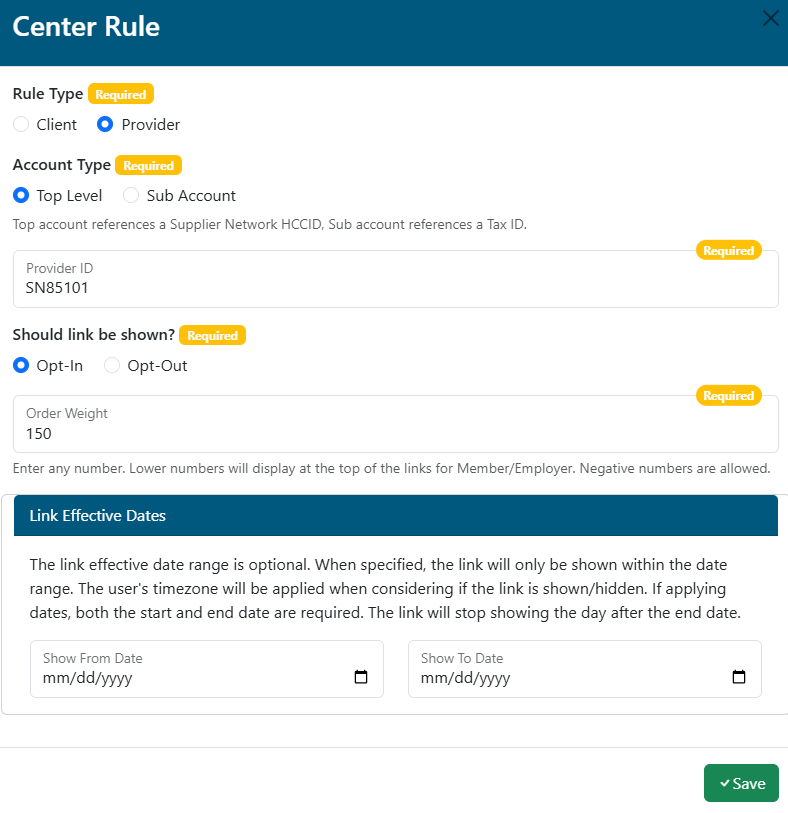
- Rule Type- Select Provider.
- Account Type - Select Top Level or Sub Account for this provider rule.
- Provider ID - Enter the Provider ID (Top account ID or TIN for Sub Account ID).
- Should link be shown? - Select Opt-In to show this link for the Client. Select Opt-Out to hide this link from the Client.
- Order Weight - If there are multiple links setup that a group can see, how high on the list will this rule show. 1 for top of list, 2 for second, and so on.
- Link Effective Dates (Optional) - The link effective date range is optional. When specified, the link will only be shown within the date range. The user's time zone will be applied when considering if the link is shown/hidden. If applying dates, both the start/FROM and end/TO date are required. The link will stop showing the day after the end/TO date.
- Click the SAVE button to save changes.