-
Created by
 Rob Ables, last updated on Mar 27, 2026
3 minute read
Rob Ables, last updated on Mar 27, 2026
3 minute read
Last Updated v1
This screen is used to view Provider/Practitioner information.
This screen will show ONLY records that are related to the provider Tax ID(s) your Provider Center account is associated with.
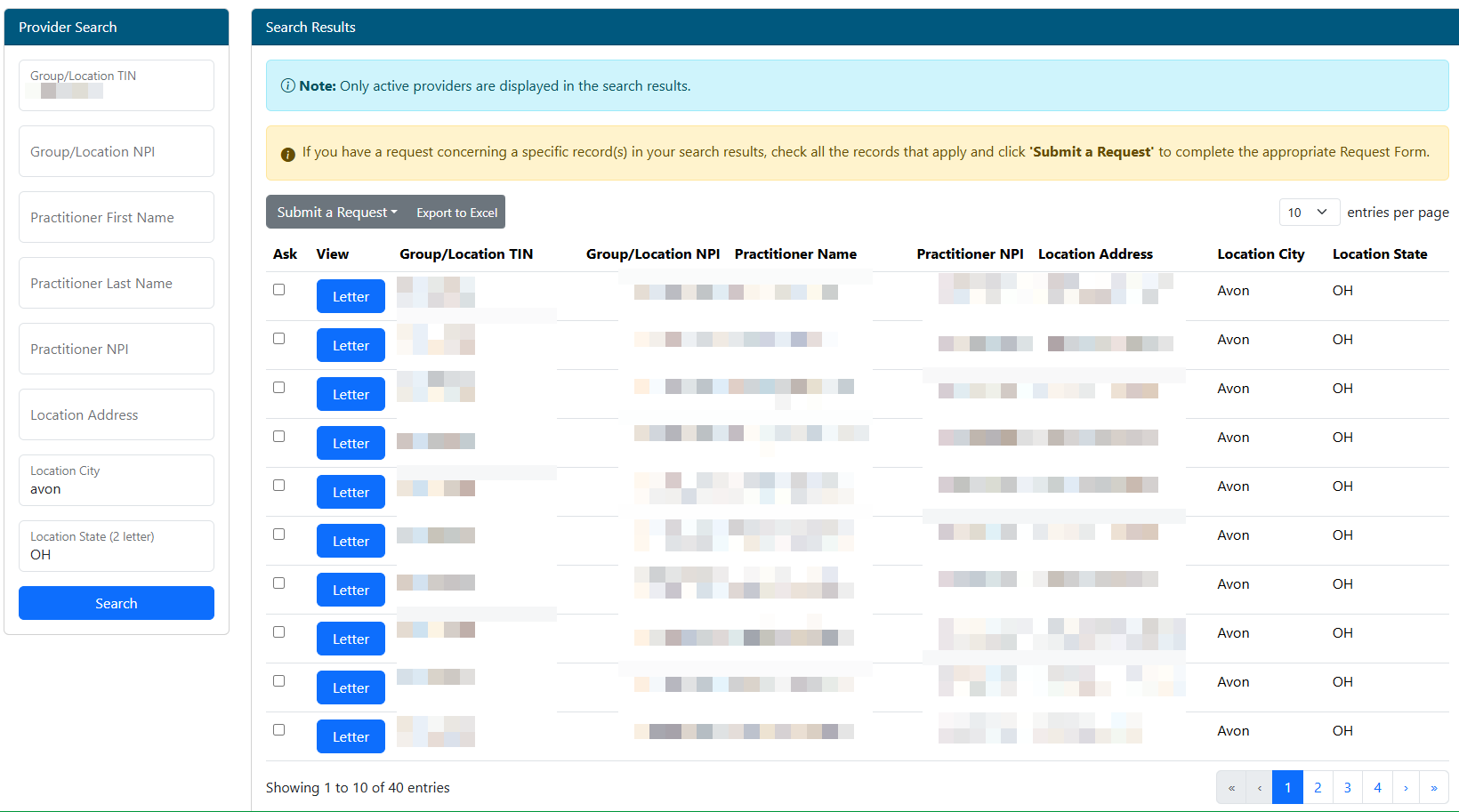
- Searching Provider/Practitioner - Records can be filtered by typing in search criteria in the left Provider Search panel.
- Click the Search button to execute the search process.
- Once results are shown in the results list, the options listed below are available.
- If the search criteria entered is too broad, the system may take excessive time to return results. For the best results, please enter as much search criteria as possible.
- Submit a Request (Forms/Questions) - Use this option to ask questions or fill out forms related to a record in the result list. Record(s) in the result list need to be selected by clicking the checkbox in the "ASK" column of the results row.
- Question options can vary per provider, but may include change/term requests, questions, and other online forms.
- When the question form is displayed, complete all required fields, any optional fields as needed, and click the Save button to submit the question form. A transaction ID will be displayed for tracking. All previously submitted transactions (questions and forms) can be viewed from the My Account\My Transactions main menu option.
- Export to Excel - Use this option to export all records currently listed in the grid to an Excel sheet (includes all pages in the grid).
- Paging - Records in the grid are shown 10 at a time. The bottom of the grid contains the current page being viewed and the total number of pages. The page can be changed by using the forward or back arrows. A page number can also be typed into the current page number box followed by the enter key. The grid will then jump to the given page number.
- Letter - The Letter button provides a copy of the effective date letter for the record selected.
- If the provider/practitioner is still in the credentialing process, this button will not be available.
Viewing Provider/Practitioner Details
Click anywhere in the Search Results row of the record to be viewed. This will open the provider detail screen.

- Record Details - Several sections and related details are shown for the selected record. Not all information is available for all records.
- To request changes to the information on file, return to the search results grid and use the Question option to submit an information update request.
- Effective Date Letter - The Letter button provides a copy of the effective date letter for the record selected.
- If the provider/practitioner is still in the credentialing process, this button will not be available.