
-
Created by
 Rob Ables, last updated on Oct 31, 2025
2 minute read
Rob Ables, last updated on Oct 31, 2025
2 minute read
Manage Portals
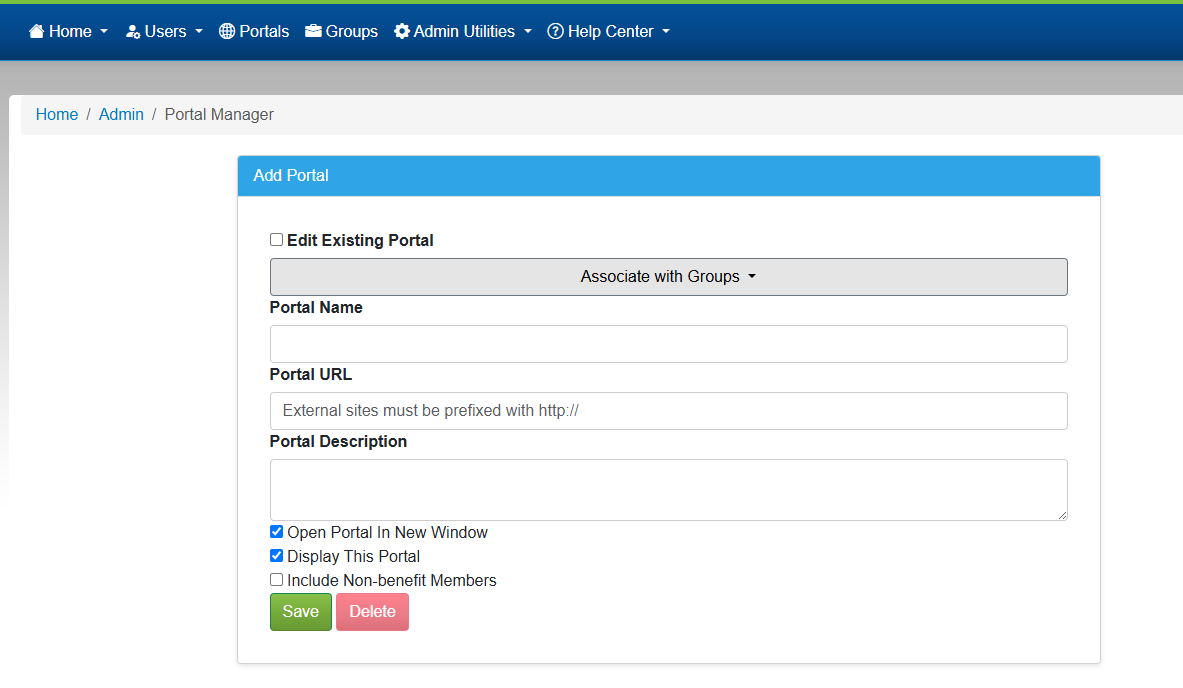
Add Portal
Add a new Portal to the myHealth system by filling out the required fields on the form.
An * denotes a required field.
- Edit Existing Portal: Not used for NEW portals. See the section below for Edit Portal.
- Associate with Groups: Expand to select the groups this portal is associated with.
- Portal Name: Enter the name of the portal that will be visible only in the admin areas.
- Portal URL: Enter the Internal or External URL for the portal.
- Internal portal URL's are specific to how the code is built. Please consult a myHealth developer for the proper URL for an internal portal.
- External URLs must be formatted properly with https://
- Portal Description: Enter the name of the portal that the end users will see in their portal links list.
- Open Portal in a New Window: Select this option to have the portal link open in a new browser window rather than overtaking the myHealth system window.
- Display This Portal: Select this option to make this portal visible for any groups assigned.
- This is essentially an Active/Inactive flag.
- Click the Save button to save the new record or changes.
- Click the Delete button to delete the portal record.
- There is no recovery option once deleted.
Edit Portal
Edit an existing Portal record with this option. The only difference between edit and new is the Portal lookup field. Use this field to find the Portal to edit. Enter the Portal name to narrow the search list. Click the desired record to start the edit.
Related pages