Workflow Queues
Last Updated v11.3.0v1
Inside the queue itself, you will see listed any outstanding transactions that need to be worked.. There are multiple tabs available at the top of the queue list for different transaction statuses. See the definitions below.
| Info | ||
|---|---|---|
| ||
Transactions are defined as any question or form that was submitted by a customer (Client or Provider). |
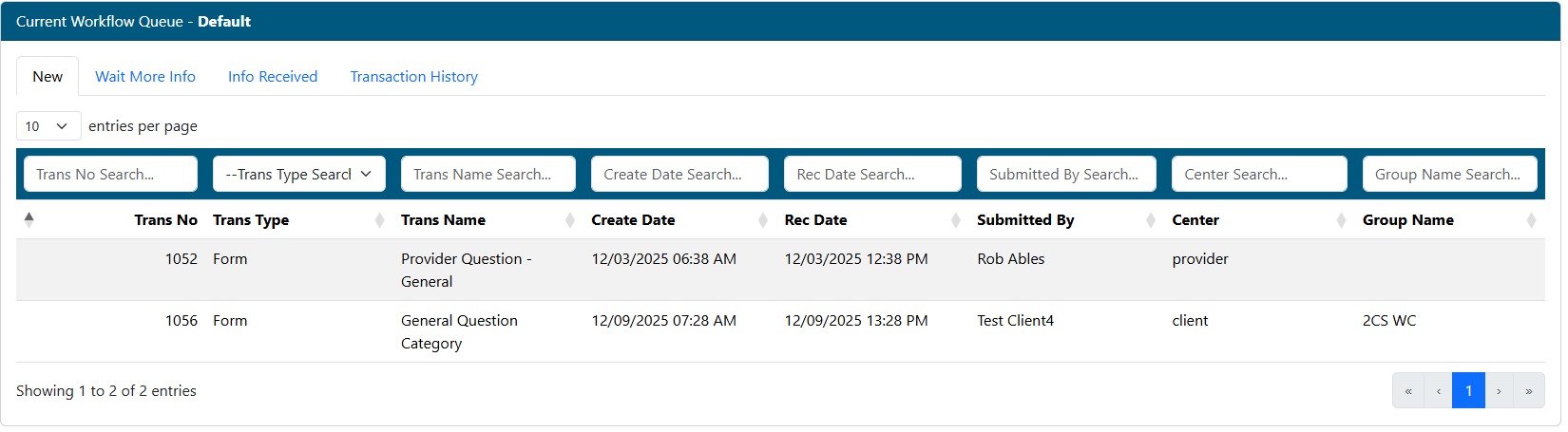
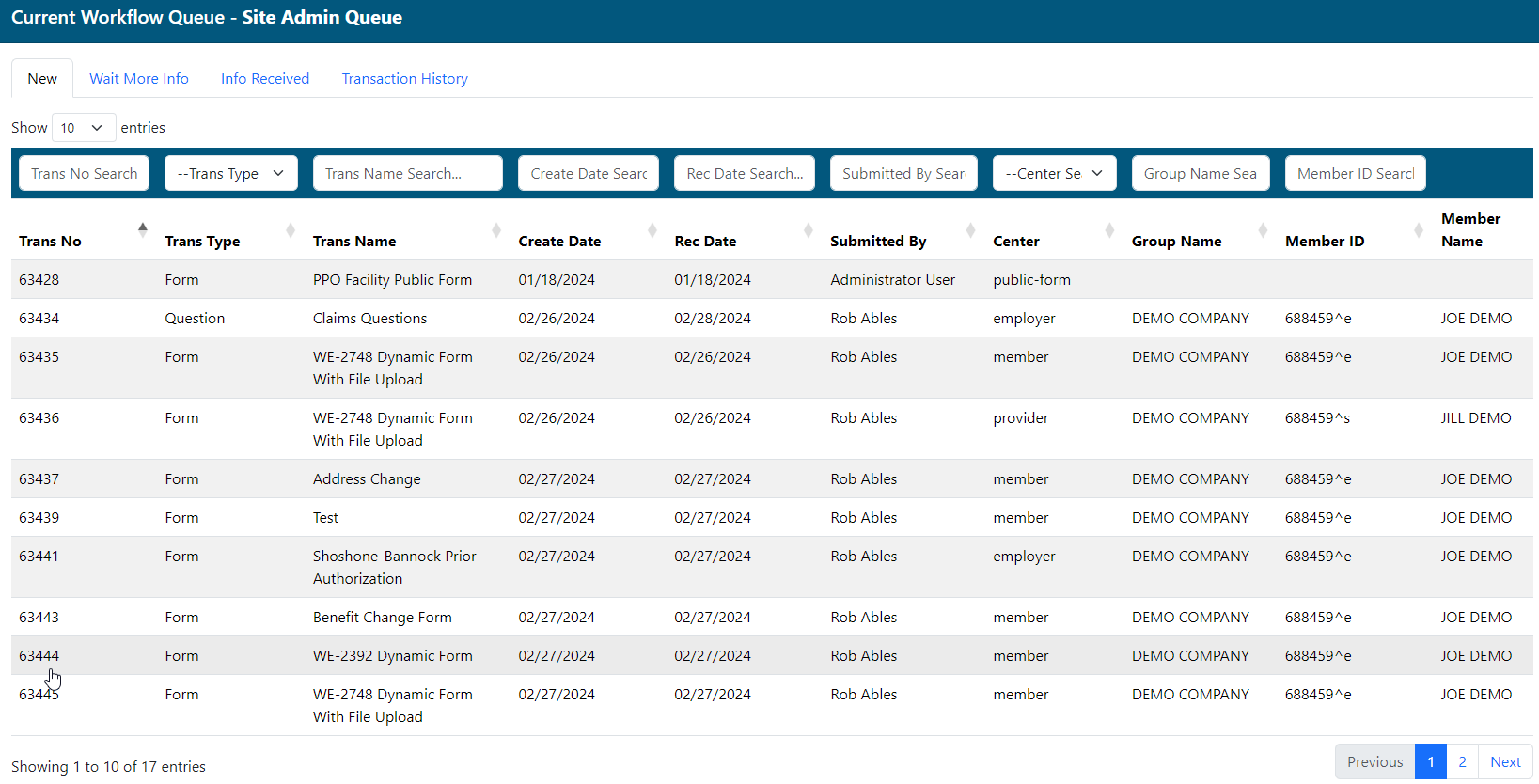
- Narrow the list down by using any filter(s) at the top of each column.
- The tabs at the top of the queue list show different transaction types: NEW, WAIT MORE INFO, and INFO RECEIVED, and TRANSACTION HISTORY.
- NEW - Transactions that have not yet been reviewed or processed, or have been reopened by the customer.
- WAIT MORE INFO - Transactions that have been sent back to the requester (Member, Employer, Provider, PPOClient or Provider) for more information.
- INFO RECEIVED - Transactions that have come back from the requester, and are now ready for second review.
- TRANSACTION HISTORY - View all transactions that have processed through this queue in the past. Add notes or reopen any transaction as needed.
- Click the transaction from the list to be worked.
Transaction Detail
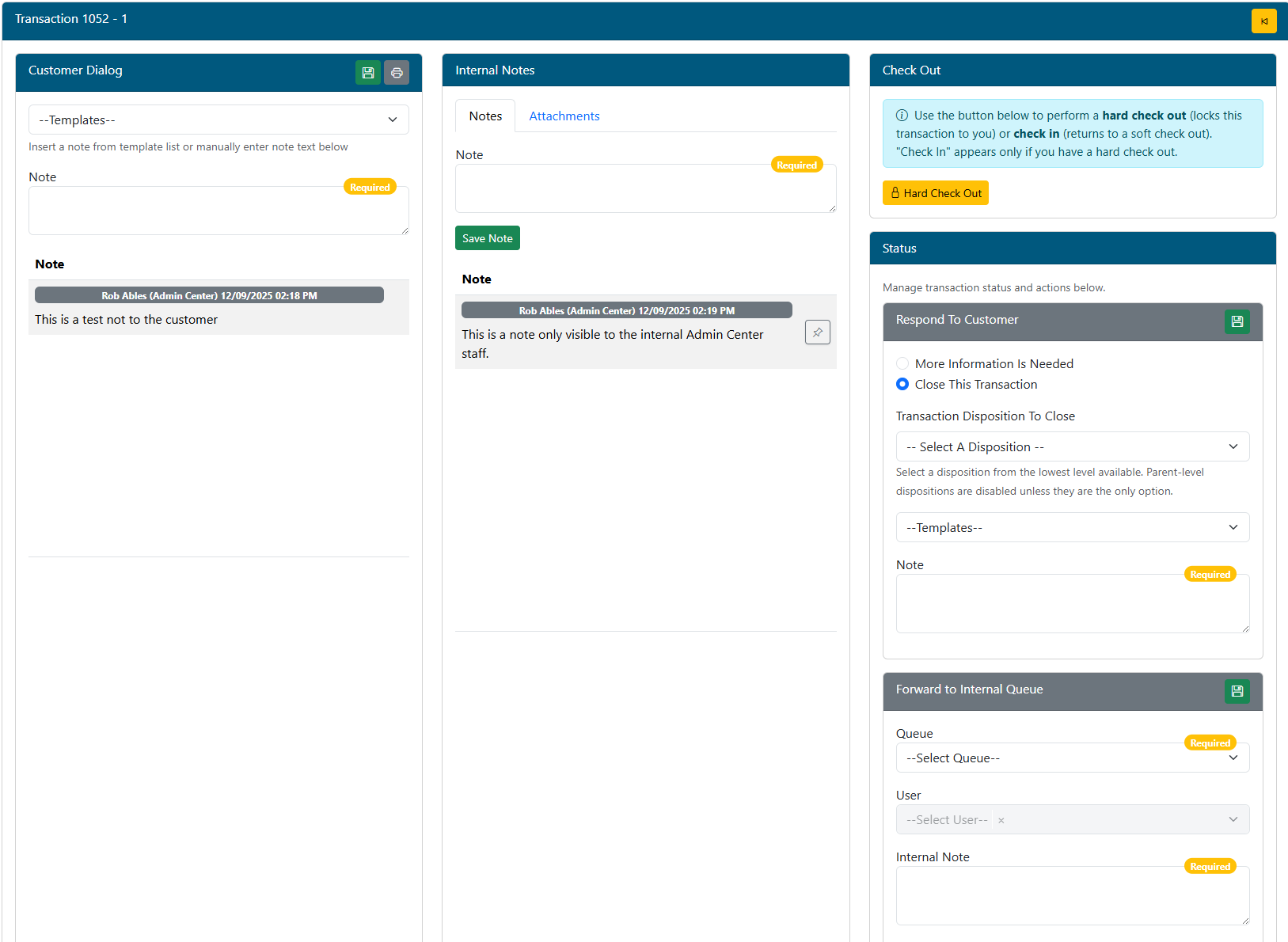
The transaction detail screens below allow the TPA Admin users to correspond with the requester, add notes and attachments, transfer to another queue, answer questions, view coverage Claim or Provider information, questions/forms and queue history, etc..
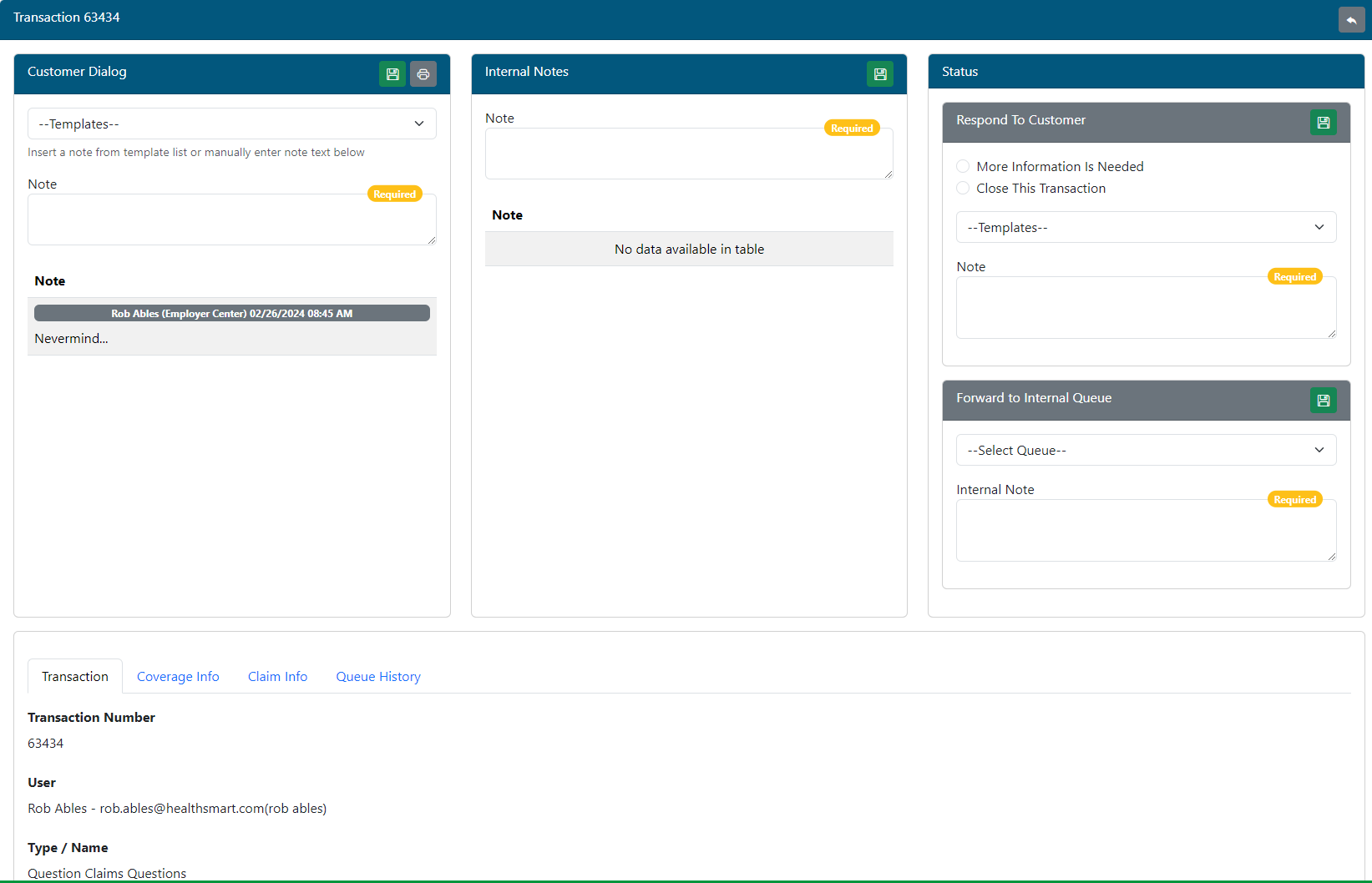
Customer Dialog
- Use a template to fill in the note box, or type a note manually. Templates can be designed in the SETUP - NOTE TEMPLATES main menu option.
- Click the ADD NOTE button to permanently attached the note to this transaction. These notes are immediately visible to the requester.
- Click the PRINT button to print a copy of the note dialogue to a printer or PDF.
Internal Notes
- These notes are only seen by intern TPA Admin Center users. Use these notes to communicate internal information regarding this transaction to the next TPA Admin user that may review this transaction.
- Enter a note, and click the ADD NOTE button.
Status
- Respond To Customer - Two options are available:
- More Information Is Needed - This will send the transaction back to the original requester along with any notes you add. The notes should be precise in requesting what information you need to complete the transaction.
- Close The Transaction - This will complete/close the transaction. The requester will receive notification of the close, and be able to see the response via any notes added.
- Response To Customer.
- Use a note template for common responses, or manually enter a note for response. These notes are stored in the same area as the Customer Dialogue notes.
| Note |
|---|
Click the UPDATE STATUS button to complete the status change. |
- Forward To Internal Queue - If the transaction when to the wrong queue, had more than one question, or cannot be answered by you, you can forward it to another TPA Admin Center queue to be worked.
- Queue Select - Select the queue to transfer to from the drop down list.
- Internal Note - This will add an internal TPA Admin Canter only note for the user that receives the transaction in the next queue.
- Click the FORWARD TO QUEUE button to transfer the transaction.
Bottom Tab Information
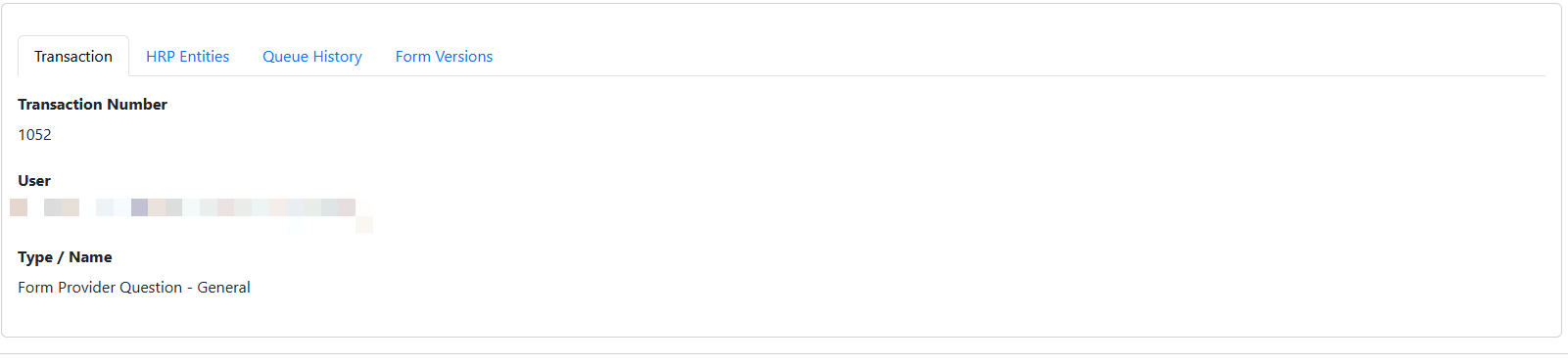
Transactions
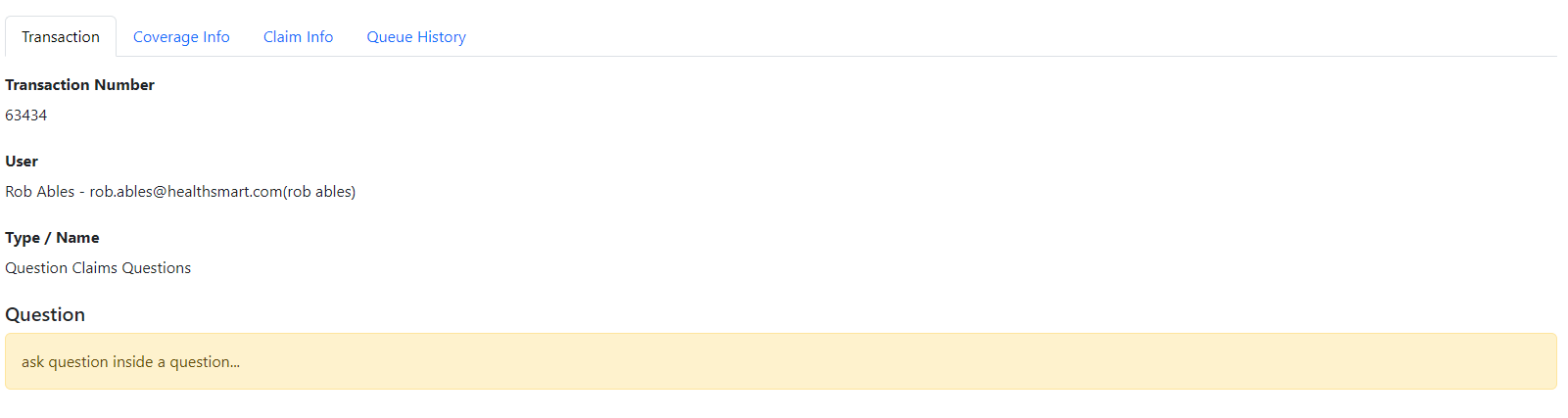
- The transactions tab show detail about this transaction including number, the user that submitted it, type of transaction, and any question text. If the transaction was a submitted form, a button will display to view the form data.
Coverage Info
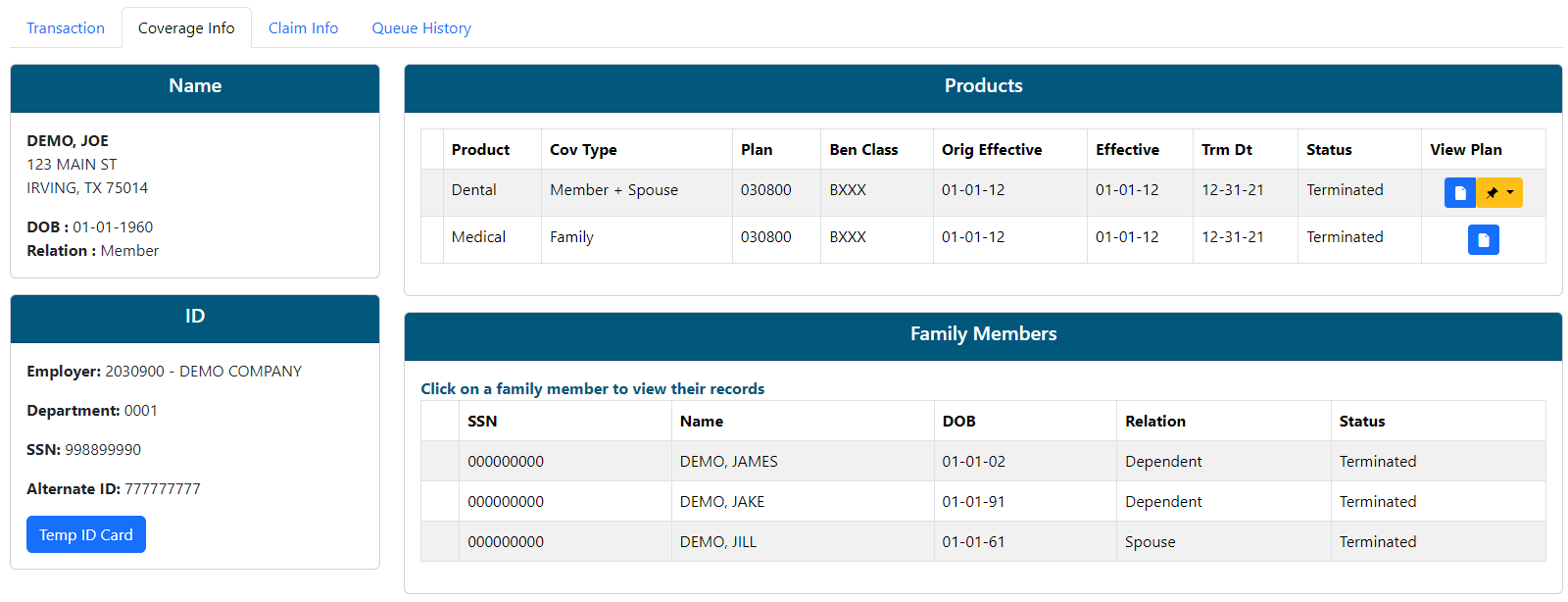
- This tab shows a snapshot of member demographic and coverage information. This will help answer coverage questions without having to leave the Web eXchange system to review similar data in an adjudication system.
- Click on any coverage or dependent row to see detail.
- Click the View Plan link to view a copy of the plan document.
Claim Info
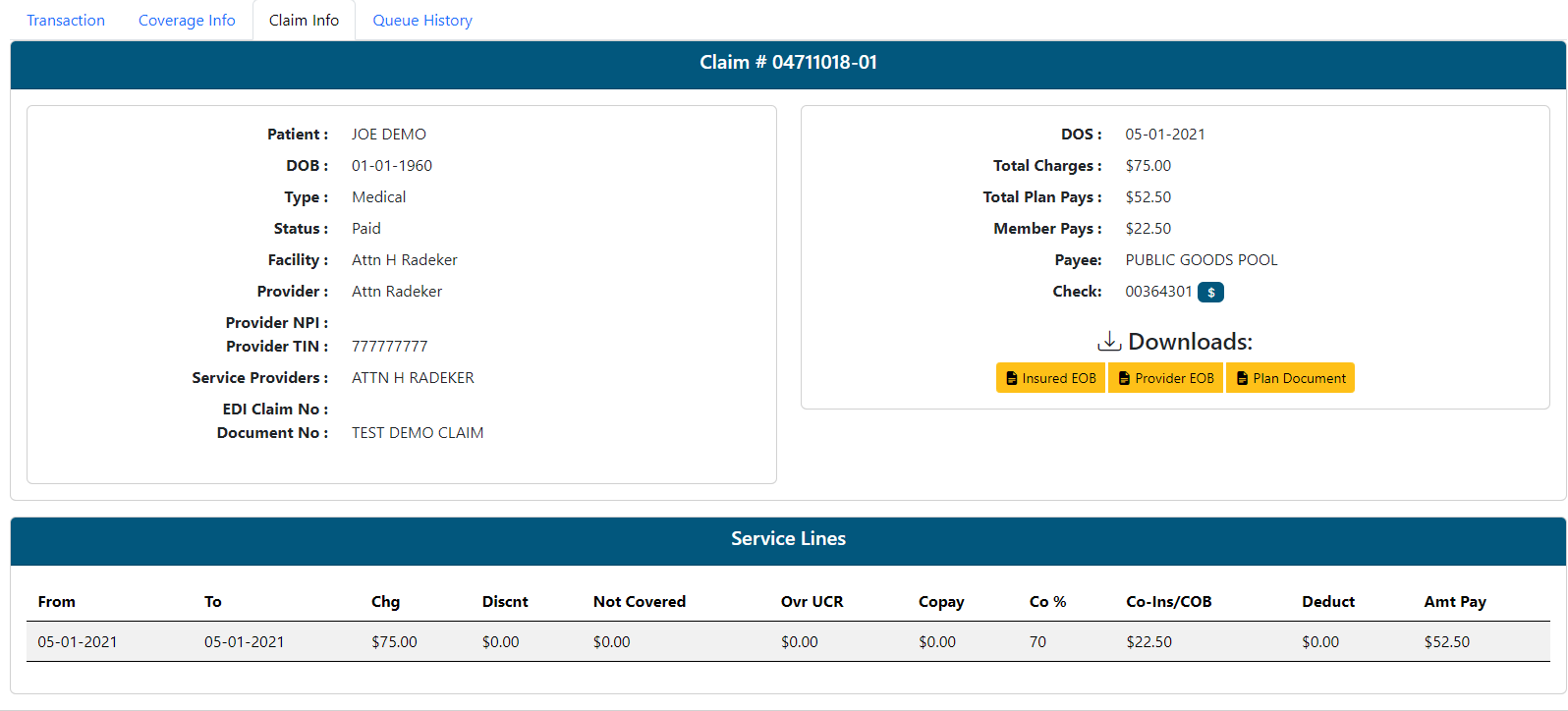
- This tab is only available on Claim Question Types. This will help answer claim questions without having to leave the Web eXchange system to review similar data in an adjudication system.
- Click the EOB or Plan document buttons for views of those documents.
Queue History

- The Queue History tab show all queues this transaction has moved through.\
- TPA Admin user and date/time stamps are added as the transaction flow in and out of each queue.