
-
Created by
 Rob Ables, last updated on Oct 30, 2025
2 minute read
Rob Ables, last updated on Oct 30, 2025
2 minute read
Last updated v4.0
The Log In Screen
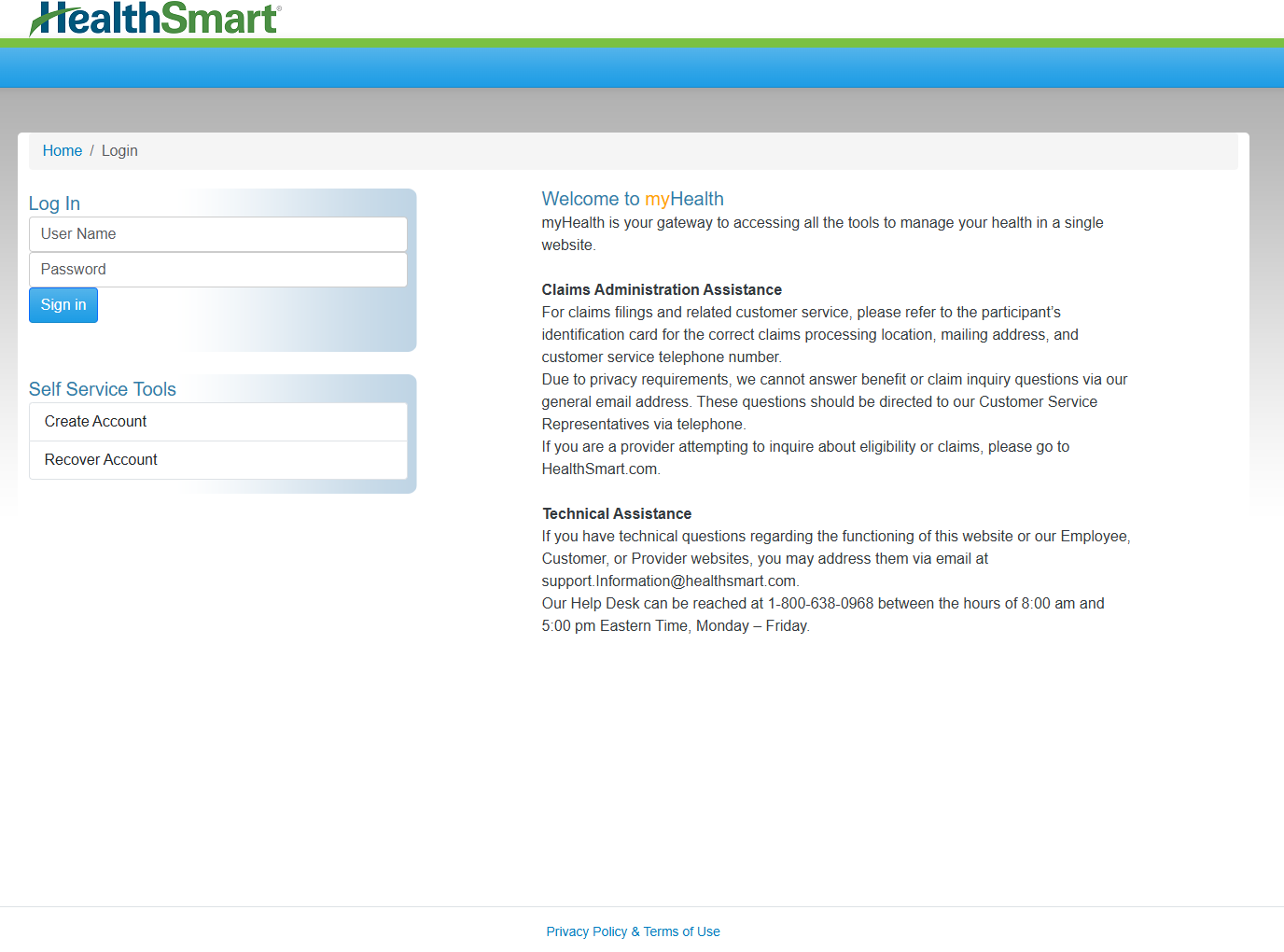
Log in
Existing users can log in by entering their user name and password, and clicking the SIGN IN button.
The myHealth system will automatically inactivate any member account that has not been used for 120 days. If you attempt to login to an inactivate account, the system will provide options to reactivate the account through verification. These options are the same as the Recover Account link in the Self Service Tools section of the login page.
Multifactor Authentication (MFA)
myHealth provides an additional layer of protection and security by using Multi-factor Authentication (MFA). MFA requires a secondary method of authentication via a phone number or smart device app to approve the login request. The current implementation of MFA in myHealth uses the DUO system.
Mandatory: All accounts that use myHealth are required to use MFA.
Usage: The first time an account logs in, it will be prompted to complete the DUO process to register a phone number and device. Please follow the on screen prompts from the DUO application to setup MFA using the options that work best for you. For each subsequent login, DUO will prompt for MFA after the initial login has been completed.

Self Service Tools
Create Account
This is not an option for an administrator account.
Recover Account
Select this option to recover a lost/forgotten password or username.
1. Member Info
This is not an option for an administrator account.
2. E-Mail.
- Enter the email address that is currently registered on the account and click the Send Reset Link button.
- The system will send an email to the verified email address on the account.
- Click the link provided in the email and the system will ask for a new password to be entered.
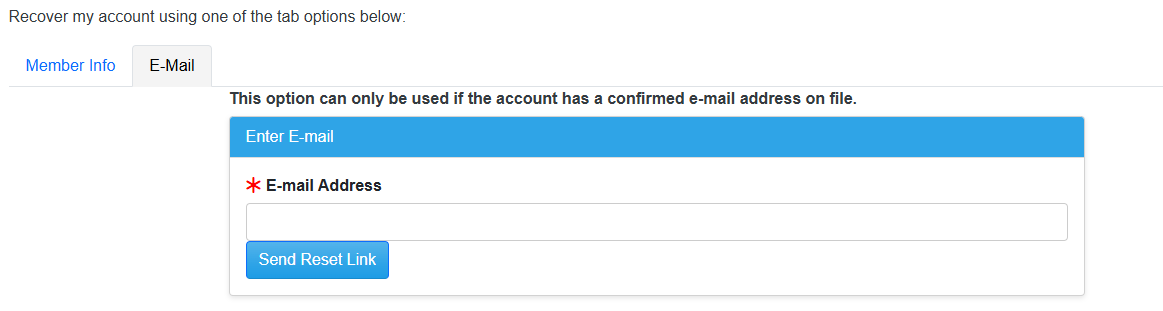
If the email is not received within 5-10 minutes, please check the email program's junk/SPAM folder.
Related pages